Rewind: save voice clips in a room
A room can save voice clips so people can replay what was said. Off by default; your voice only with your yes.
Rewind is off in every new room. An owner or admin turns it on per room. Your voice is saved only if you say yes, and guests are never saved. People hear you live either way. Clips are kept for 1 hour by default, and never longer than the plan’s room history.
Turn it on (owners and admins)
Phone
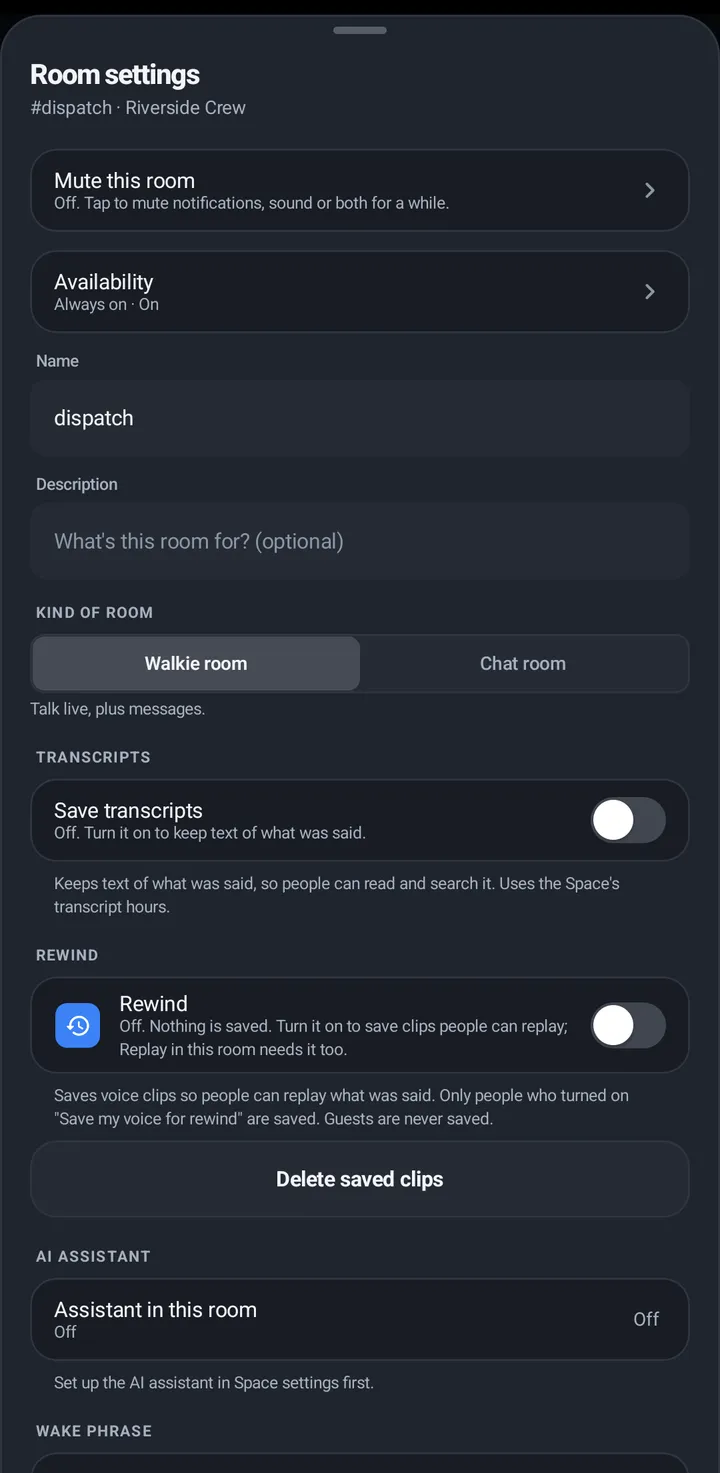
- Room settings › Rewind. Turning it off offers Delete saved clips.
- While it is on, Keep clips for sets 1 hour, 1 day or 7 days. The row says “On. Clips are kept for 1 hour.”
Watch
Set Rewind on the phone.
Web app and iPhone
Set Rewind on the Android phone.
Your choice
Phone
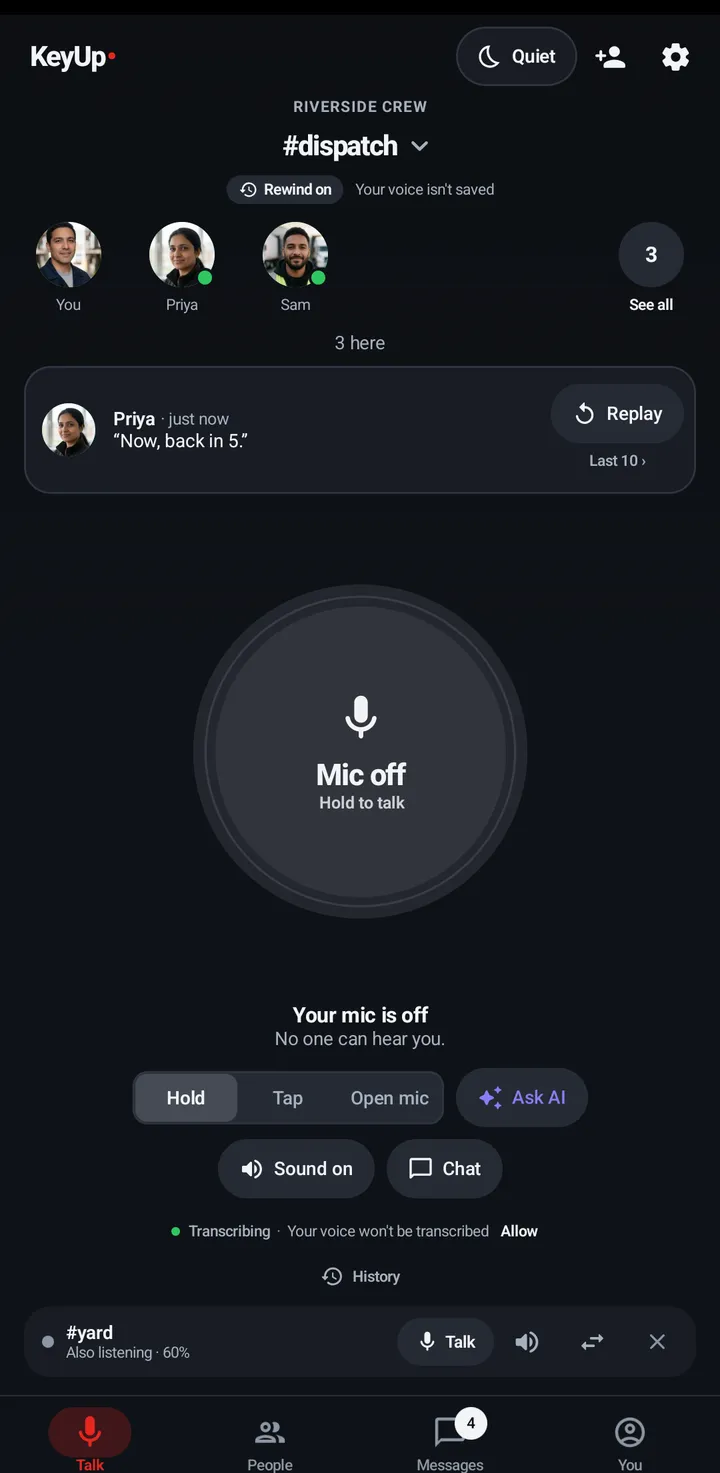
- In a room with Rewind on you see Rewind on with Your voice is saved or Your voice isn’t saved, and once the question Save my voice for rewind? (Yes or Not now).
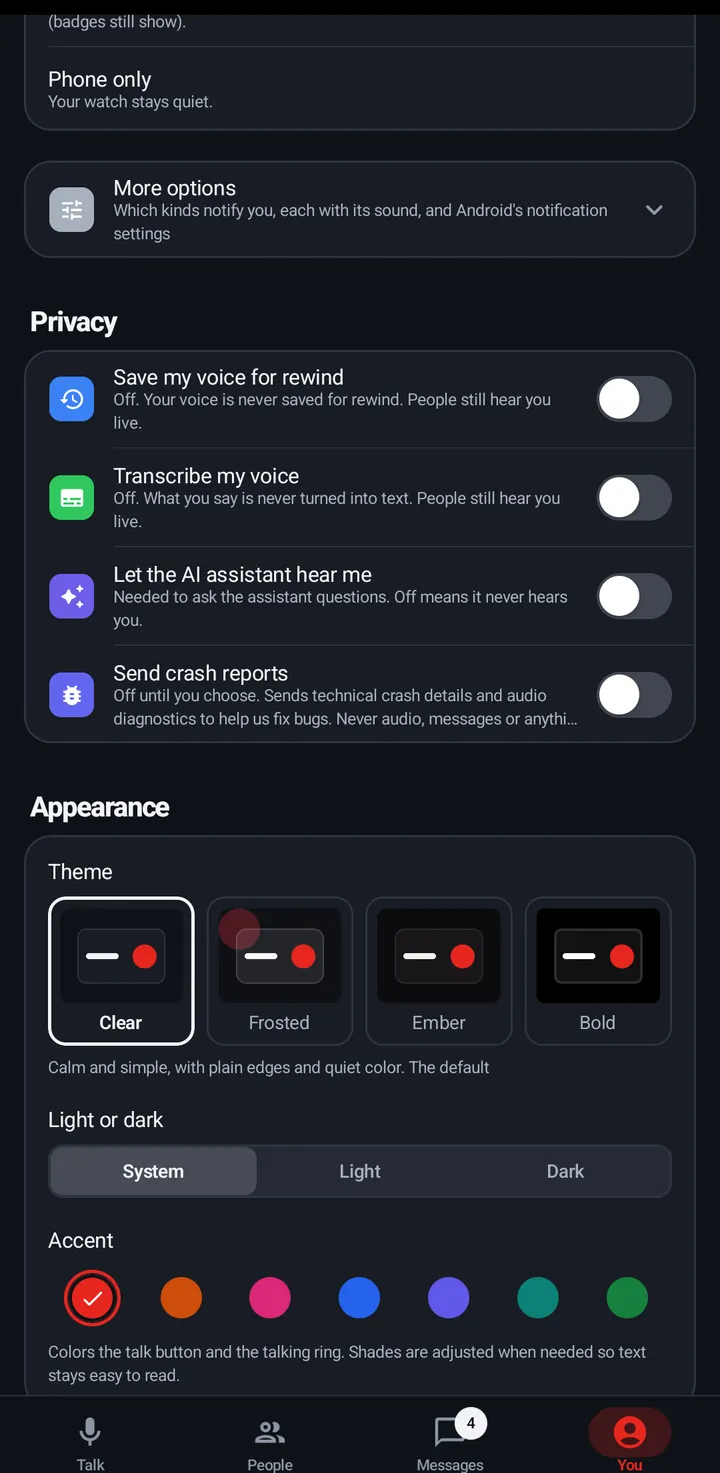
- Change it any time in You › Privacy › Save my voice for rewind.
Watch
The same question and line show in swipe up › In this room. The switch is Settings › Privacy › Save my voice for rewind.
Web app and iPhone
The room card shows Rewind on with the one-time question. The switch is You › Privacy › Save my voice for rewind. The web can’t play clips.
Still stuck? Email [email protected]. Tell us your phone and watch model and what you tried.