Direct messages
Message one person, mute or delete a chat after a while, and call from the chat.
Direct messages, with their photos and voice notes, are kept while both accounts exist. The plan’s room history doesn’t apply to them.
Direct messages
Phone
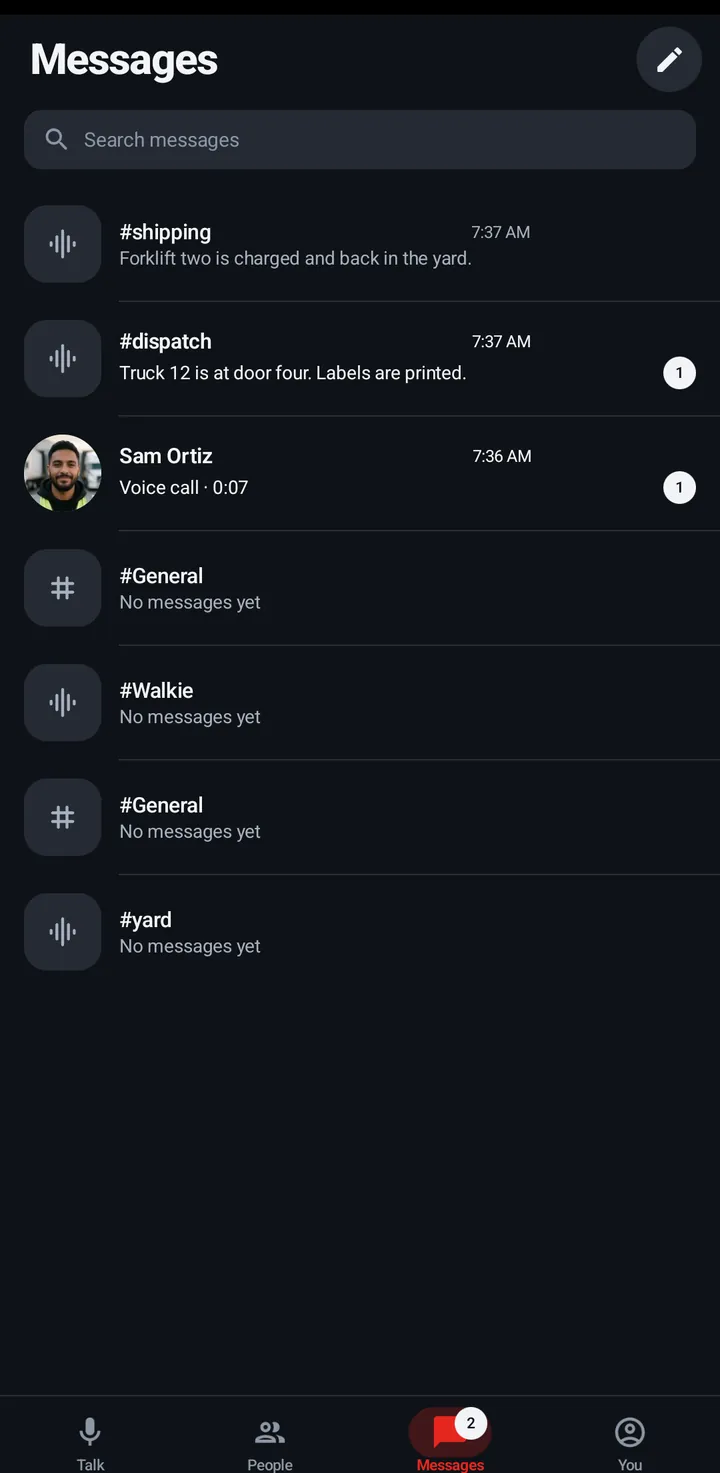
- Messages tab › the pencil (New message) › pick a person.
- Or a person’s sheet › Message.
Watch
Swipe up, scroll to Actions, Messages › New message (friends first, then people from your Spaces), or a person’s screen › Message.
Web app and iPhone
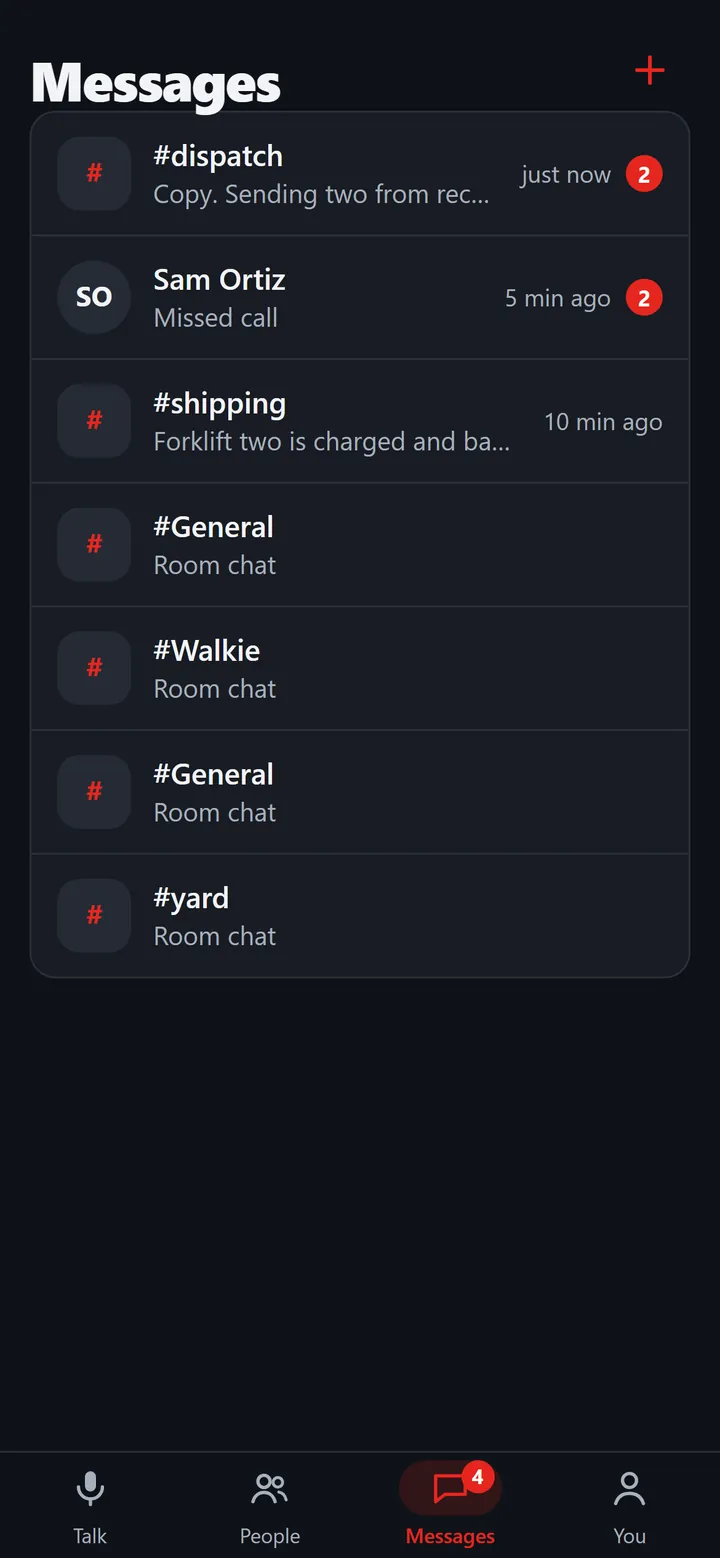
Messages tab › the + button (New direct message), or a person’s sheet › Message.
Message options and mute
Each chat has options to turn its notifications off for a while, call, open History (Replay and Transcripts), and in a direct chat set Delete messages after.
Phone
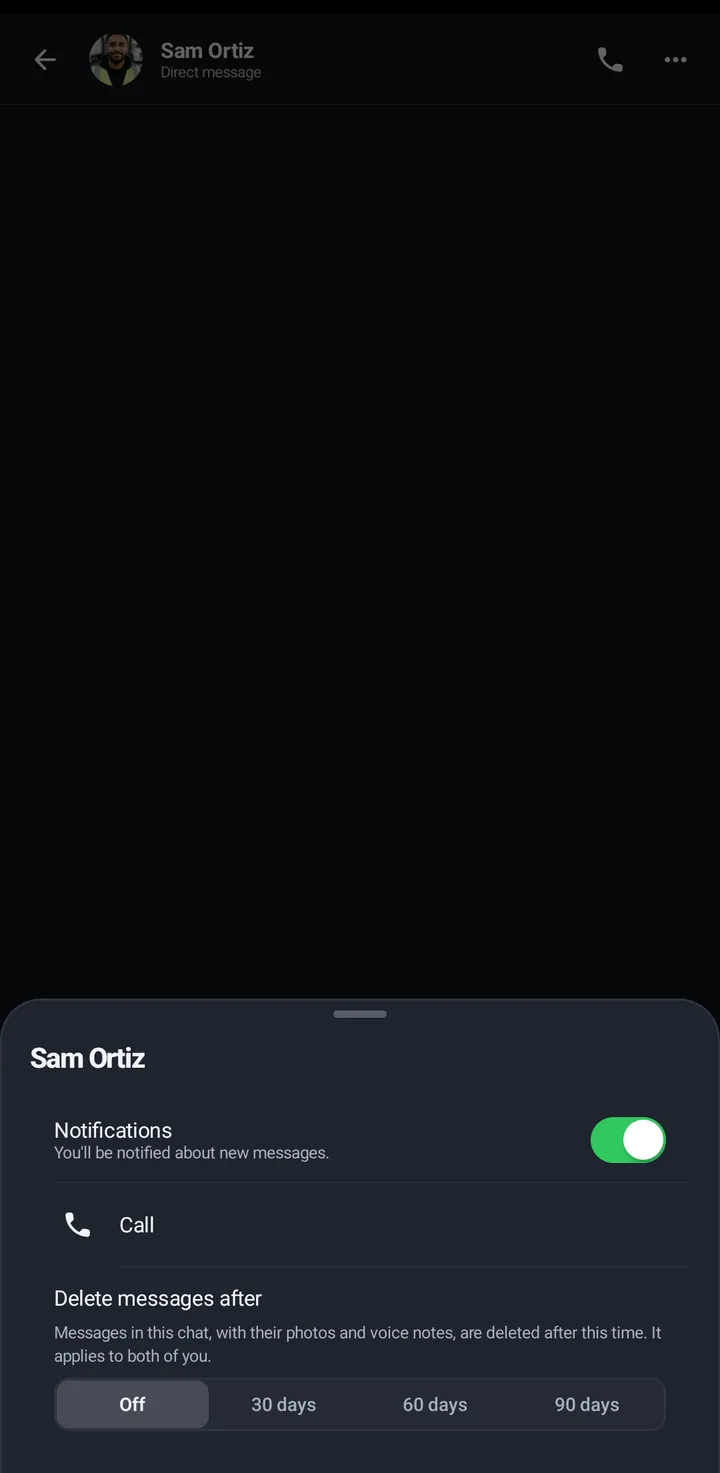
- In a chat, tap the three dots (Conversation options): Notifications, Call (or Start a room call), in a room History and Room settings, and in a direct chat Delete messages after.
- Or long press a conversation or room row › Mute.
Watch
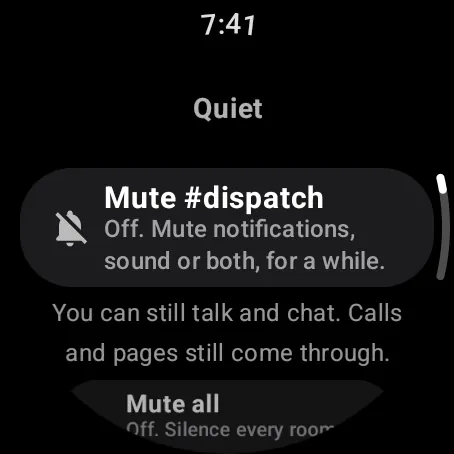
Swipe up, Quiet › Mute.
Web app and iPhone
- Right click or long press a conversation in Messages to mute it.
- In a direct chat, Chat options (three dots) has Mute this chat and Delete messages after.
Delete messages after
Either person in a direct chat can turn this on. It applies to both people, with the photos, voice notes and reactions. It is Off by default.
Phone
- In a direct chat, tap the three dots (Conversation options) › Delete messages after.
- Pick Off, 30 days, 60 days or 90 days.
Watch
In a direct chat, tap the Delete messages after chip, then a length. “Applies to both of you. Photos and voice notes go too.” It works without a phone.
Web app and iPhone
In a direct chat, tap Chat options (three dots) in the header › Delete messages after.
Still stuck? Email [email protected]. Tell us your phone and watch model and what you tried.