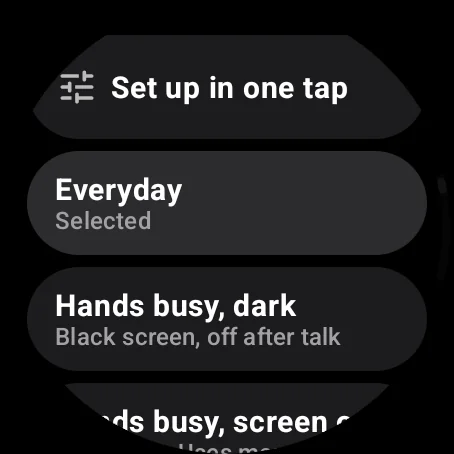
Set up in one tap: Everyday or Hands busy
Pick one of three setups and the watch sets the matching talk rows for you.
Instead of setting several rows by hand, pick a setup. KeyUp only fills in the same rows you can set yourself, never removes a setting, and every row stays, so you can change any of them afterwards.
Watch
- Go to Settings › How you talk › Set up in one tap. The chip shows which one is on, or Your own mix.
- Pick one and the watch first shows what will change. Confirm it to apply it. A notice then offers Undo for a few seconds, which puts every row back as it was.
- Everyday (Tap the button, no dark screen): you talk with the on-screen button, with the black screen and screen-off options off.
- Hands busy, dark (Black screen, off after talk): the crown, Tap, Black screen while crown talking on and Screen off when a crown talk ends on. It also needs Screen-off crown talk. If that isn’t on, the watch says Set to Hands busy, dark. Now turn on Screen-off crown talk.
- Hands busy, screen on (Screen on. Uses more battery): the crown, Tap, the black screen options off and Keep KeyUp on screen on.
- A line says Set to Everyday (or the one you picked).
Phone
On the watch. The phone’s You › Talk › On my watch has the picker; the individual rows are on the watch.
Still stuck? Email [email protected]. Tell us your phone and watch model and what you tried.