Mic boost, Volume boost and Even out voices
Raise your voice before it is sent, make the room louder than the system volume allows, or even out quiet and loud talkers.
Three settings that change loudness: Mic boost raises your voice before it is sent, Volume boost makes the room louder for you, and Even out voices makes quiet talkers louder and loud ones softer.
Mic boost
Mic boost goes from 0 to 20 dB (off at 0). A limiter keeps loud voices clean. On a Samsung Galaxy Watch it starts at +12 dB, because Samsung watches record quieter. It is yours to change.
Phone
You › Sound › Advanced › Mic boost (slider).
Watch
Settings › Sound › Advanced › Mic boost (a stepper screen, “Your mic level”).
Web app and iPhone
You › Sound, under Sound check: Advanced › Mic boost (slider, saved in this browser).
Volume boost
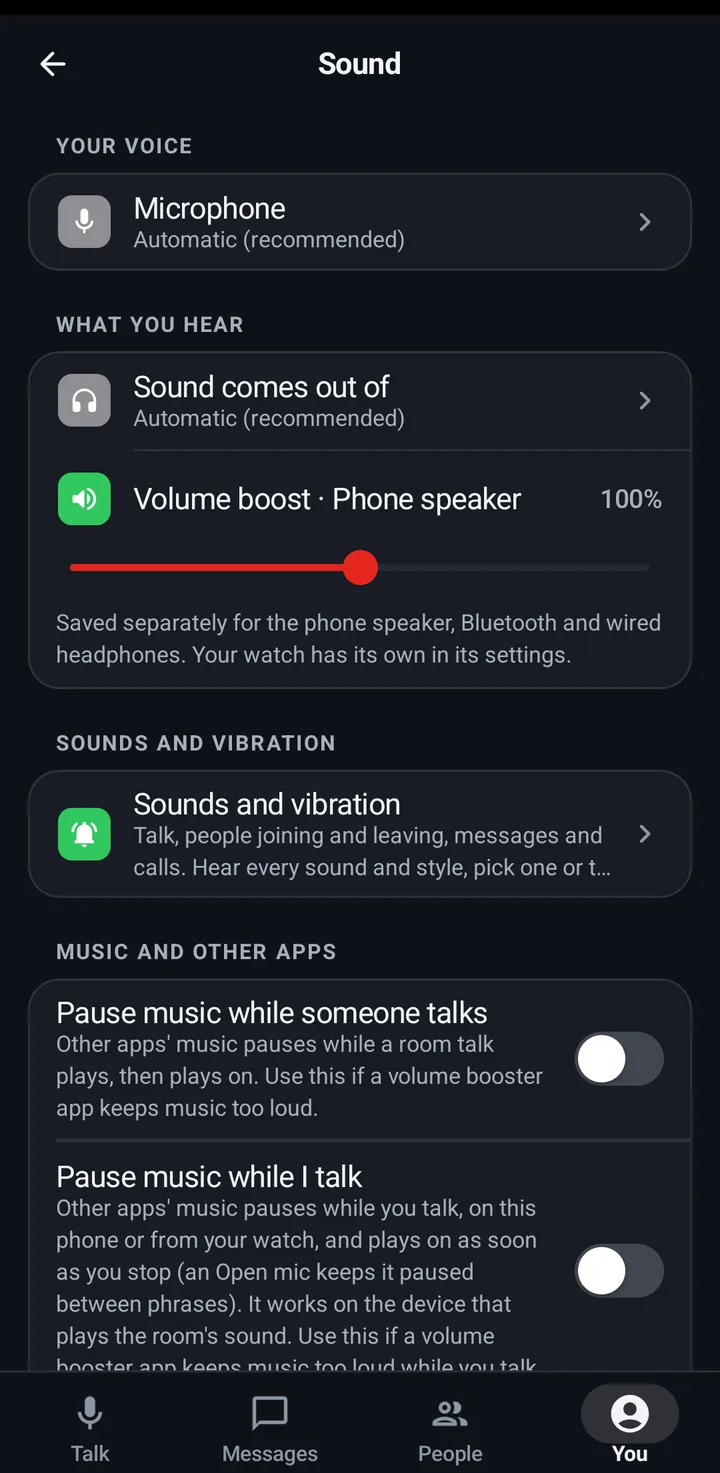
Volume boost is saved separately for the phone speaker, Bluetooth and wired headphones, and the watch has its own. Above 150% on headphones you get Loud in headphones. Protect your hearing. It also makes Replay clips, missed talks and voice notes louder above 100%.
Phone
You › Sound › Volume boost (it names the output playing now, like Volume boost · Bluetooth; slider, 0 to 200%). At 0% it says At 0% you hear no room on this output.
Watch
Settings › Sound › Volume boost. Each tap goes 100, 125, 150, 175 and 200%. A tap at 200% no longer jumps round to 0%. It sets the output playing now and says which, like 150% · Bluetooth. Above 150% on Bluetooth or wired headphones it says Loud in headphones. Protect your hearing. At 0% it says Muted for you: you hear no room on that output.
Web app and iPhone
Not in the web app. Use the device’s volume buttons.
Even out voices
Even out voices levels everyone you hear. You can still fine-tune one person with per-person volume.
Phone
You › Sound › Advanced › Even out voices.
Watch
Settings › Sound › Advanced › Even out voices.
Web app and iPhone
Not in the web app.
Still stuck? Email [email protected]. Tell us your phone and watch model and what you tried.