Password and email
Reset a forgotten password, change your password, and add and confirm the email that lets you reset it.
Your email is what lets you reset a password you forgot and get your data. Add one, confirm it, and keep a password you can use.
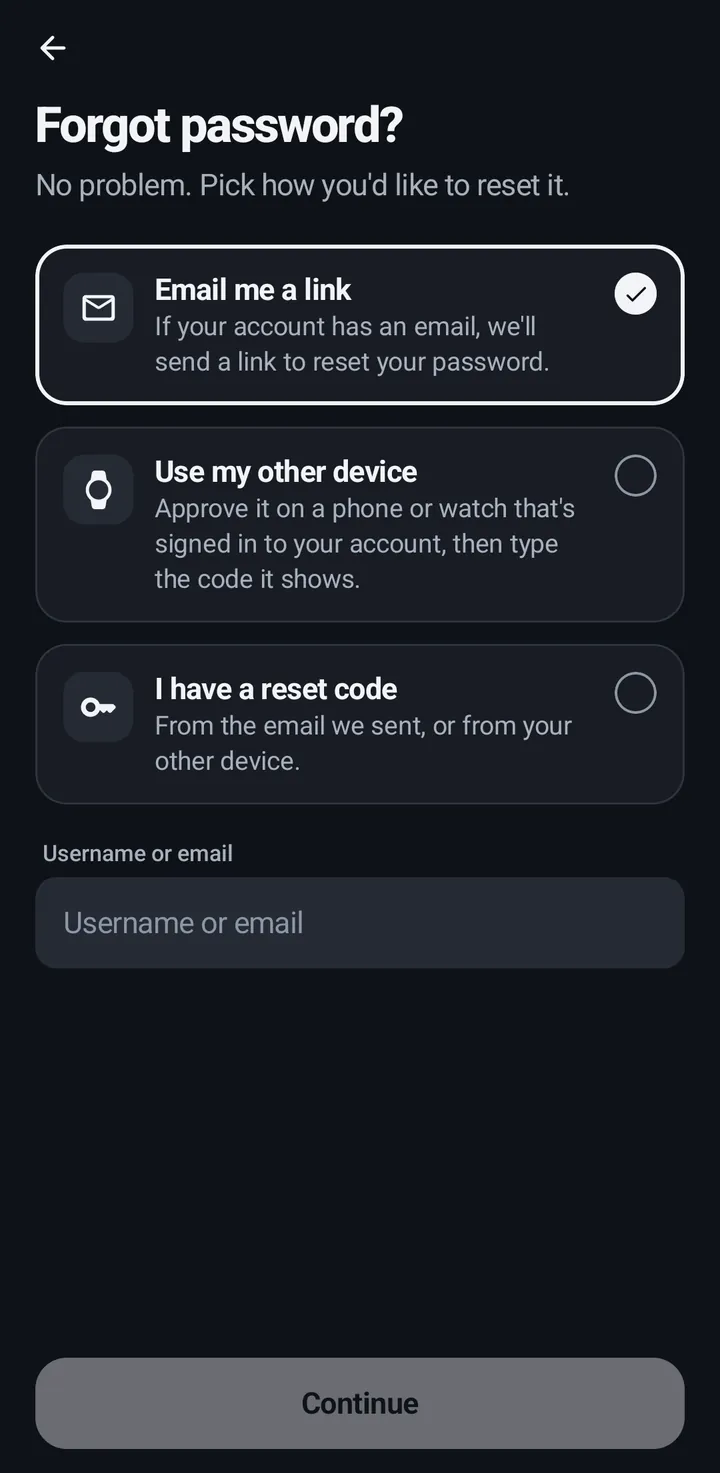
Forgot password
There are three ways back in. The email option works only when your account has a confirmed email. Use my other device works when you are still signed in on another phone or watch of yours, with no email and no password. Either works for an account made with Google too, and sets a first password. Only one request is open at a time: asking again replaces the first one.
Phone
- Sign in › Forgot password? (or Can’t sign in? on the Sign in screen, which offers Email me a reset link, Use my other device and Contact KeyUp).
- Pick Email me a link, Use my other device or I have a reset code.
- On your other phone, answer Is this you?. Tap Yes, it’s me. Show the code (or Deny). A code shows there for you to type on the device you are signing in on. No password is asked. If the phone has a screen lock (fingerprint, face or PIN), it asks for that first; if it has none, the sheet says so and does not claim lock protection. If the phone can’t ask for the lock, it says Couldn’t ask for your screen lock. Try again. and approves nothing. The code works for 10 minutes. Only the newest request is shown, and one that has run out disappears.
Watch
When someone asks to reset your password, the watch shows Is this you? with Approve and Deny. Approve shows a code to type on that device, and asks for the watch’s screen lock first when it has one. The watch never asks for your password. If it can’t ask for the lock, it says Couldn’t ask for your screen lock. Approve on your phone. and approves nothing.
iPhone
- In the iPhone app (in private testing): Sign in › Forgot password?, then Email me a link, Use my other device or I have a reset code, the same as on the phone.
- While KeyUp is open on the iPhone, it asks Is this you? when someone resets your password from another device. Type your current password, then tap Yes, it’s me. Show the code (or Deny).
Web app and iPhone
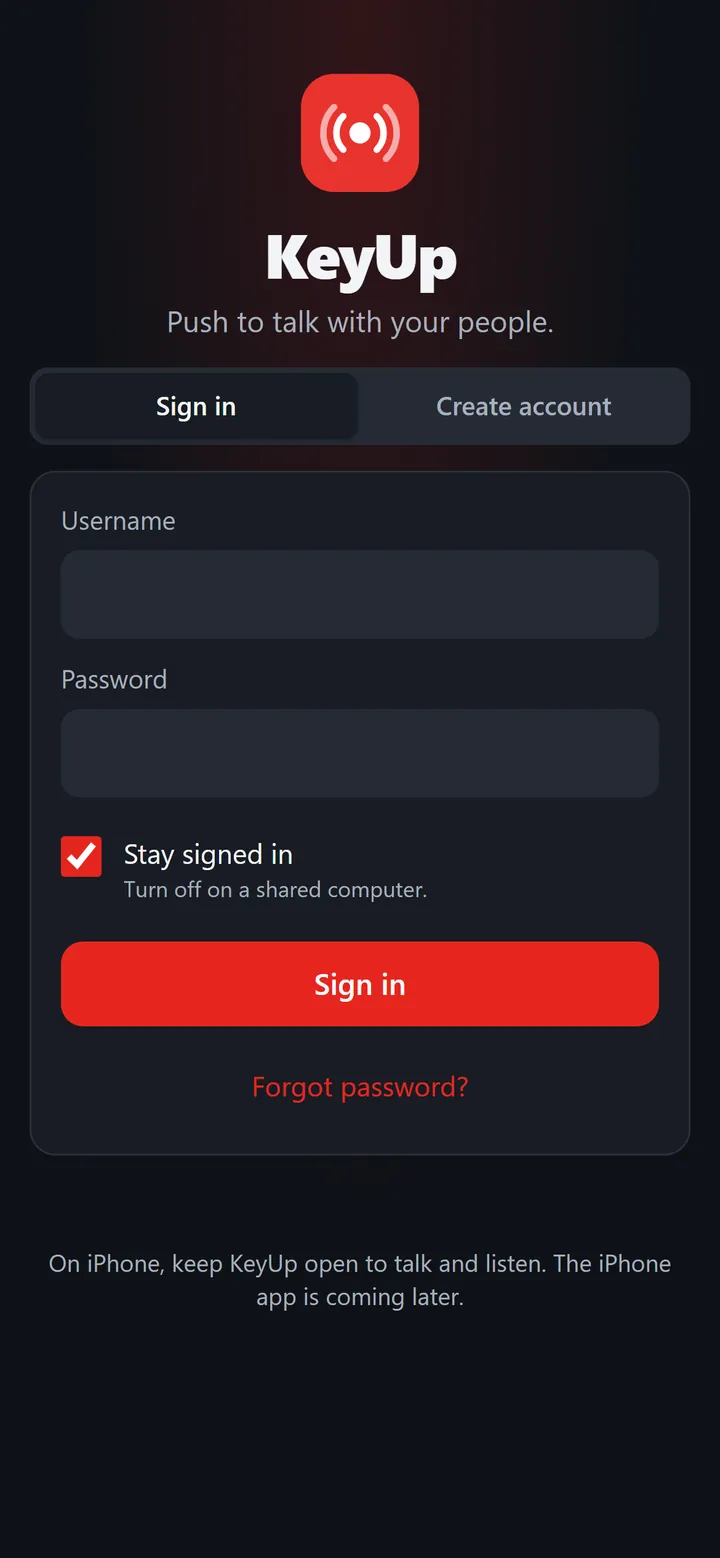
- Forgot password? offers three ways, like the phone: type a username or email › Send link (the email link opens a reset page), or Use my other device for a code approved on a device where you are signed in, or Contact KeyUp. No email on your account? Use my other device.
- A signed-in browser tab can approve too: it shows Is this you? with Yes, it’s me. Show the code and Deny. With notifications on, a closed web app can alert you to the request, and to an approval made on another device. Opening the notice shows the live request; a late notice for a reset that has expired says it expired.
Change your password
A new password needs at least 12 characters, with an uppercase letter, a number and a symbol. An older, shorter password keeps working until you change it. Changing your password signs you out on your other devices, including your watch. You then add the watch again. If you made your account with Google and have no password, this row says Set a password instead: see Sign-in methods.
Phone
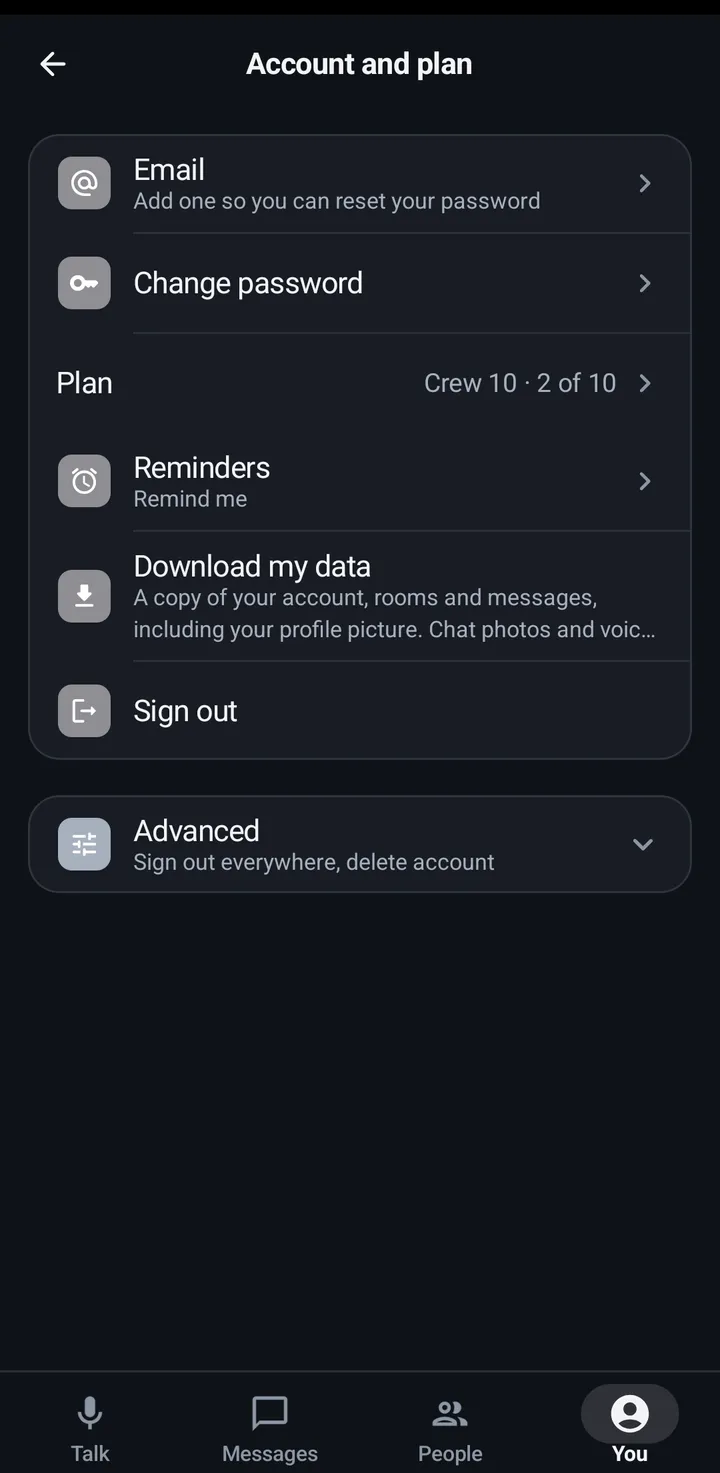
You › Account and plan › Sign-in methods and password › Change password.
Watch
Settings › You › Account › Advanced › Change password says Do this in KeyUp on your phone or at keyupradio.com. The watch never asks for your password.
Web app and iPhone
You › Account › Change password.
Add and confirm your email
KeyUp sends a link to confirm the address. It is used to reset your password, confirm the email, send your data when you ask, and for important account messages. Once it is confirmed, you can also type it in place of your username to sign in. Change or remove it with your current password. With no password (an account made with Google), KeyUp asks you to confirm with Google instead.
Phone
You › Account and plan › Email: Add an email, then Save and send link. Remove email is there too.
Watch
Settings › You › Account › Advanced › Email shows your email and whether it is confirmed. To add, change or remove it, use KeyUp on your phone or keyupradio.com, as the watch says.
Web app and iPhone
You › Account › Email.
Still stuck? Email [email protected]. Tell us your phone and watch model and what you tried.