Sounds and vibration
Pick, preview or turn off talk sounds, chirps, message sounds, ringtone, vibration and chimes.
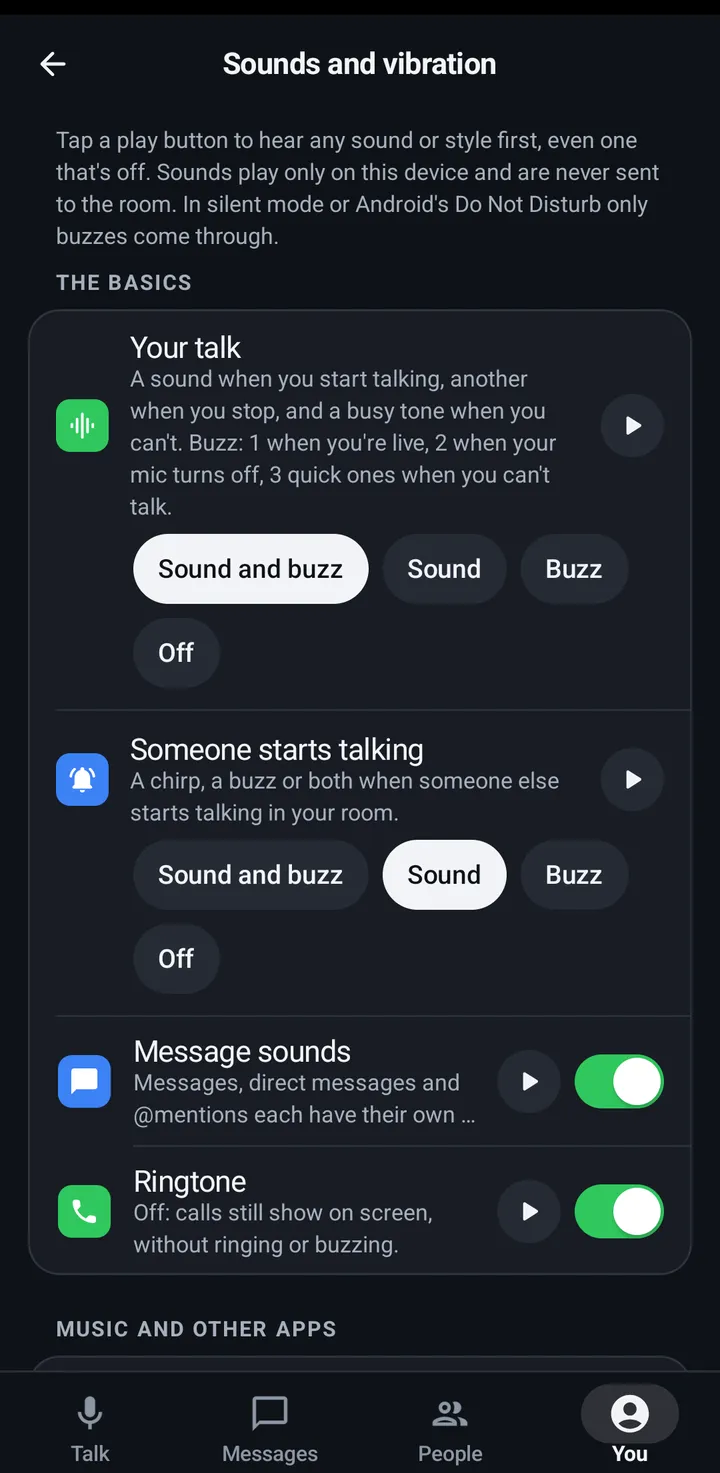
Your talk (start, stop and a busy tone, and its buzz), Someone starts talking (a chirp, a buzz or both), Message sounds, Ringtone, Someone stops (a roger beep), Second room chirp, Call end sound, Missed call sound, Call waiting beep, chimes when people join or leave your room (someone whose connection drops for a moment and is back within 5 seconds never left, so no chime), and chimes when a friend comes online or goes offline (off by default). Hear any of them first, and pick styles and volumes.
Phone
- You › All settings › Sound › Sounds and vibration (in Classic look, You › Sound › Sounds and vibration).
- The basics: Your talk and Someone starts talking, each Sound and buzz, Sound, Buzz or Off; then Message sounds and Ringtone.
- You › All settings › Sound › Music and other apps (in Classic look, You › Sound › Music and other apps) has two choices. Incoming talks: Lower music (the default) makes other apps’ music quieter while a room talk plays, and Pause music pauses it, then it plays on. While I talk has the same two choices for your own talks, from this phone or from your watch, and the music plays on as soon as you stop (an open mic keeps it paused between sentences). The Sounds screen does not repeat them: it shows the line Pause music is in You › Sound, with what they are set to now. See Music during talks.
- Advanced: styles and volumes, Someone stops (Off or a roger style), people and friend chimes, messages and invitations, and calls.
Watch
- Settings › Sounds and vibration: Talk sounds, Someone starts talking, Message sounds, Ringtone, then under Music, Incoming talks and While I talk (each Lower music or Pause music), then Advanced.
- The watch has its own list; the phone’s doesn’t sync.
- Buzz style is under Advanced, next to Talk vibration. See Buzz style below.
iPhone
- In the iPhone app, You › Sound › Messages has Message sounds (on by default) and a play button for each sound: a message, a direct message and an @mention. They play while KeyUp is open; Quiet and muted chats stay silent.
- In the iPhone app, You › Sound › Advanced › Music and other apps has the same two switches, both off by default: Pause music while someone talks (music pauses while a room talk or a Replay plays here) and Pause music while I talk.
- Some music apps don’t play on by themselves after a pause. Press play in the music app if it stays paused. While your Open mic is on, paused music stays paused until the mic is off.
- With Headset button on, music from other apps already pauses while a room is open. See Talk with your earbud or headset button.
Web app and iPhone
You › Sounds: people, friends, talking, rooms and calls, saved in this browser.
Still stuck? Email [email protected]. Tell us your phone and watch model and what you tried.