Sign-in methods, and Sign in with Google
See how you sign in, add or remove Google, or set a password if you made your account with Google.
Your account can have a password, Google, or both. Sign-in methods shows which, and lets you add or remove Google. An account always keeps at least one way to sign in, so you can’t lock yourself out.
Link or unlink Google
Phone
- Open You › Account and plan › Sign-in methods and password. It shows whether a password is set, and whether Google is linked, with its email shortened.
- Tap Link Google. KeyUp asks for your password first, then shows Google’s sheet. Pick the account to link.
- Tap Unlink Google to remove it. KeyUp asks for your password.
- Google is your only way in? KeyUp says Add a password or another way to sign in first. Use Set a password below, then unlink.
Web app
- Open You › Account › Sign-in methods. It shows whether a password is set, and whether Google is linked, with its email shortened.
- Tap Link Google. KeyUp asks for your password, then takes you to Google. Pick the account to link, and you come back to the same sheet with Google linked.
- Tap Unlink Google to remove it. KeyUp asks for your password.
- Google is your only way in? KeyUp says Add a password or another way to sign in first. Use Set a password below, then unlink.
Watch
The watch has no Sign-in methods. Use your phone or the web app.
Set a password
For an account made with Google. The Set a password row takes the place of Change password while the account has no password.
Phone
- Open You › Account and plan › Sign-in methods and password › Set a password.
- KeyUp asks you to sign in with Google again, to confirm it’s you.
- Type a new password: at least 12 characters, with an uppercase letter, a number and a symbol.
Web app
- Open You › Account › Set a password.
- KeyUp takes you to Google to confirm it’s you, then back.
- Type a new password: at least 12 characters, with an uppercase letter, a number and a symbol.
Delete your account or change your email with no password
Delete account, and adding, changing or removing your email, ask for your password. If you have none, Google confirms it’s you instead.
Phone
- Open You › Account and plan › Advanced › Delete account or You › Account and plan › Email. In place of the password box, the sheet says Confirm it’s you and Sign in again with Google to continue.
- Sign in with Google and pick the same account. The sheet you started opens again.
- Finish as usual.
Web app
- Open You › Account › Delete account or You › Account › Email. In place of the password box, the sheet says Confirm it’s you with a Sign in with Google button.
- Sign in with Google and pick the same account. The sheet you started opens again and says Confirmed with Google.
- Finish as usual.
Watch
The watch never asks for your password: do these in KeyUp on your phone or on the web.
Sign in with Google
Sign in with Google lets you get into KeyUp with your Google account instead of a KeyUp password. You still have a KeyUp account, with its own username, name and age group. Google only tells KeyUp who you are. KeyUp never sees your Google password, and Google never sees your messages, talks or Spaces.
Make a new account with Google
Phone
- On Welcome or Create account, tap Sign up with Google.
- Pick your Google account in the sheet Google shows.
- On Finish your account, check the username (Google’s suggestion is filled in, and you can change it) and your name, and give your birth year. There is no password to make. Finish the form and you are signed in.
Web app
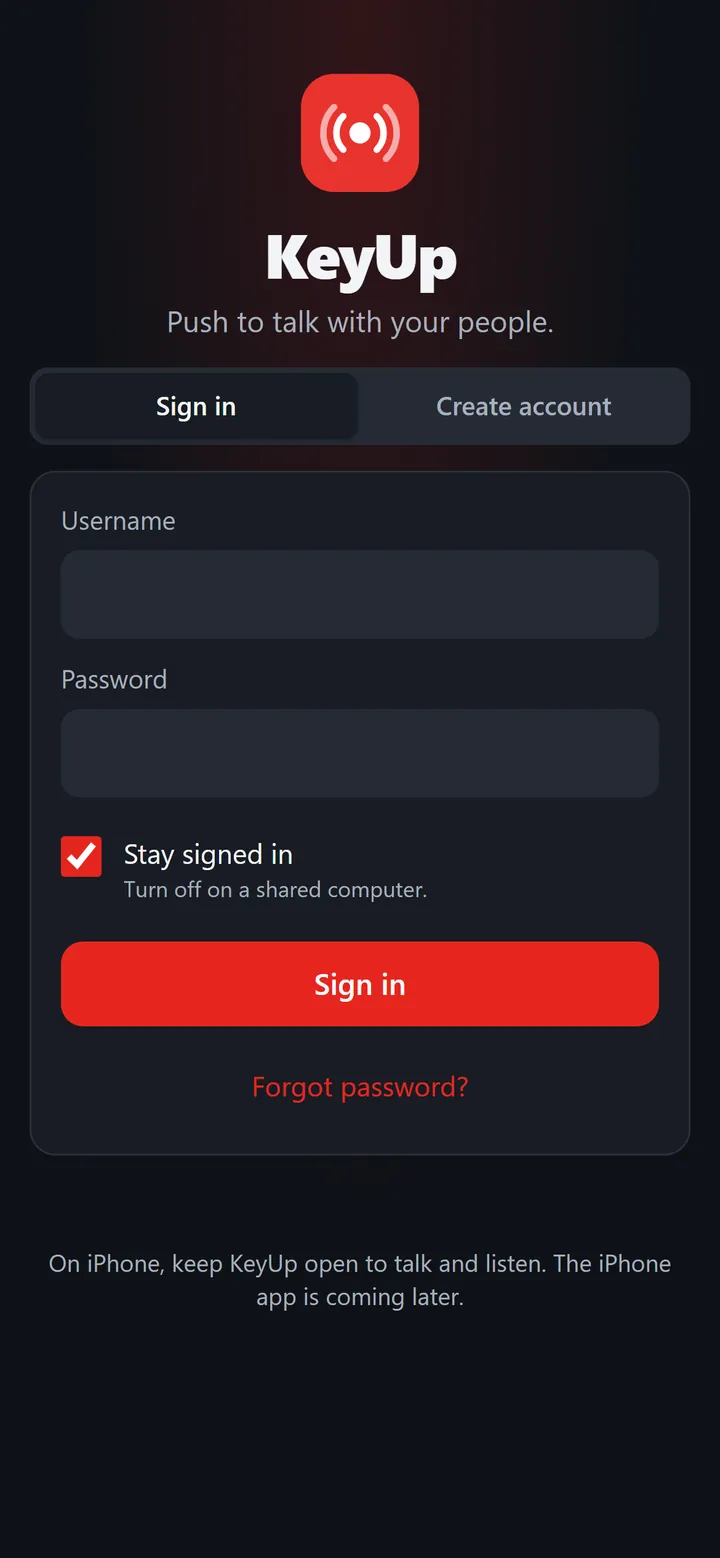
- Open the web app. On the Create account tab, tap Sign up with Google above the form. On the Sign in tab the same button says Sign in with Google.
- You go to Google’s own page. Pick your account, and you come back to KeyUp.
- Then Finish setting up: username, name and birth year. No password.
- Leave Stay signed in on, unless the computer is shared.
Sign in again
Phone
On Welcome or Sign in, tap Sign in with Google and pick the same Google account. You go straight in.
Web app
Tap Sign in with Google above the sign-in form. You go to Google, then straight back into KeyUp.
Where it works
Watch
The watch has no Google button. Sign it in with Sign in from your phone, or approve its code on a phone that is already signed in. See Add your watch.
iPhone
The web app added to the iPhone Home Screen has no Google button yet. Sign in there with your password.
Still stuck? Email [email protected]. Tell us your phone and watch model and what you tried.