Quiet and Let through
Quiet holds everything for a while, on all your devices. Pick a length, choose what gets through, and see who sees your moon.
There are three ideas, with the same words on the phone, the watch, the web app and iPhone. Quiet: everything waits for a while. Mute: silence one room, all rooms or one person. Hours: when you are on. Each row says what it is doing now. A dot on the moon shows that Quiet is on or that something is muted. This page covers Quiet. Mute, Hours and notification levels have their own pages.
Quiet
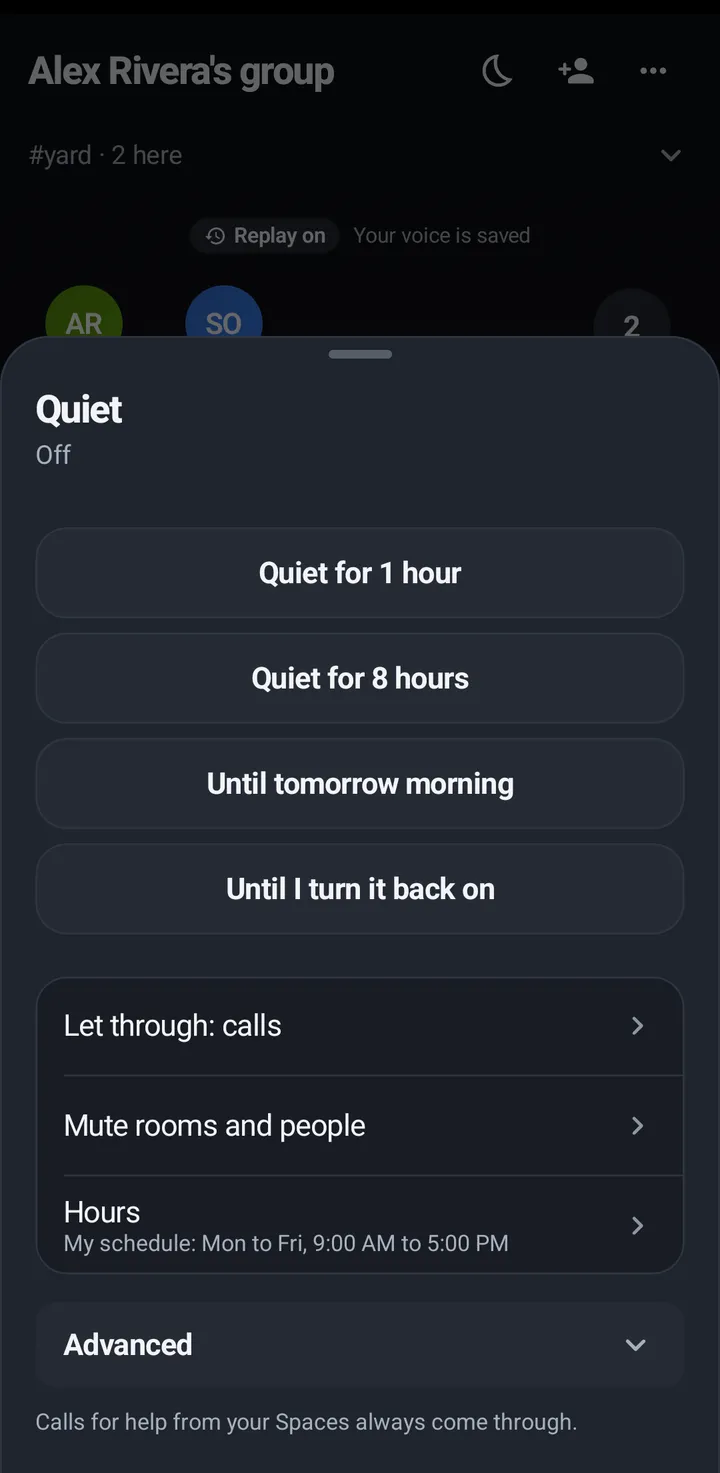
Quiet is one switch for all your devices, Quiet all my devices. You can still talk when you press talk. People see a moon next to your name, and a call to you is declined at once and the caller is told. Pick a length: 1 hour, 8 hours, Until tomorrow morning (8:00 AM) or Until I turn it back on. The length you used last is already picked next time. It is saved on your account, so it applies everywhere. Off says Off. Everything waits for a while. and on says On until 7:00 AM.
Phone
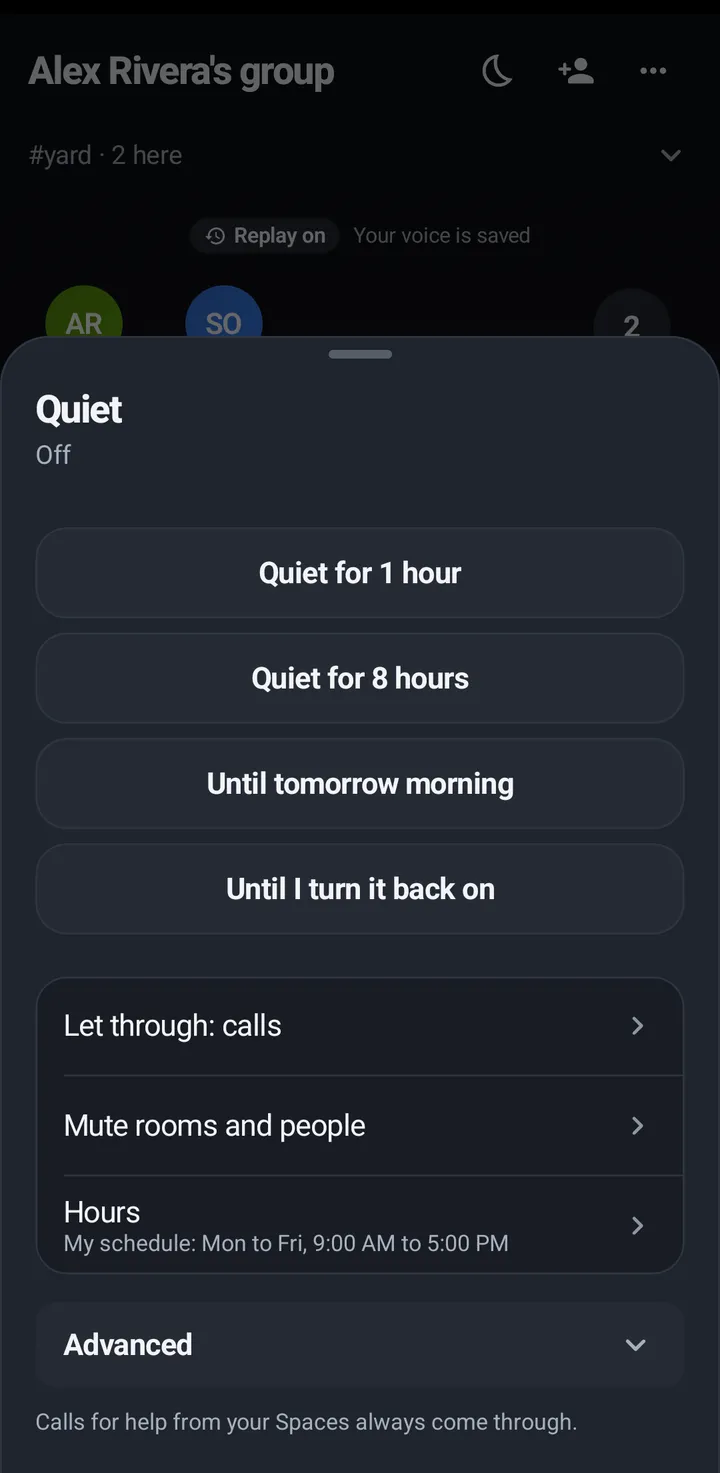
- Tap the moon pill at the top of the Talk tab or any room. The sheet is called Quiet. Its first row is Quiet all my devices.
- Pick a length, or switch it off.
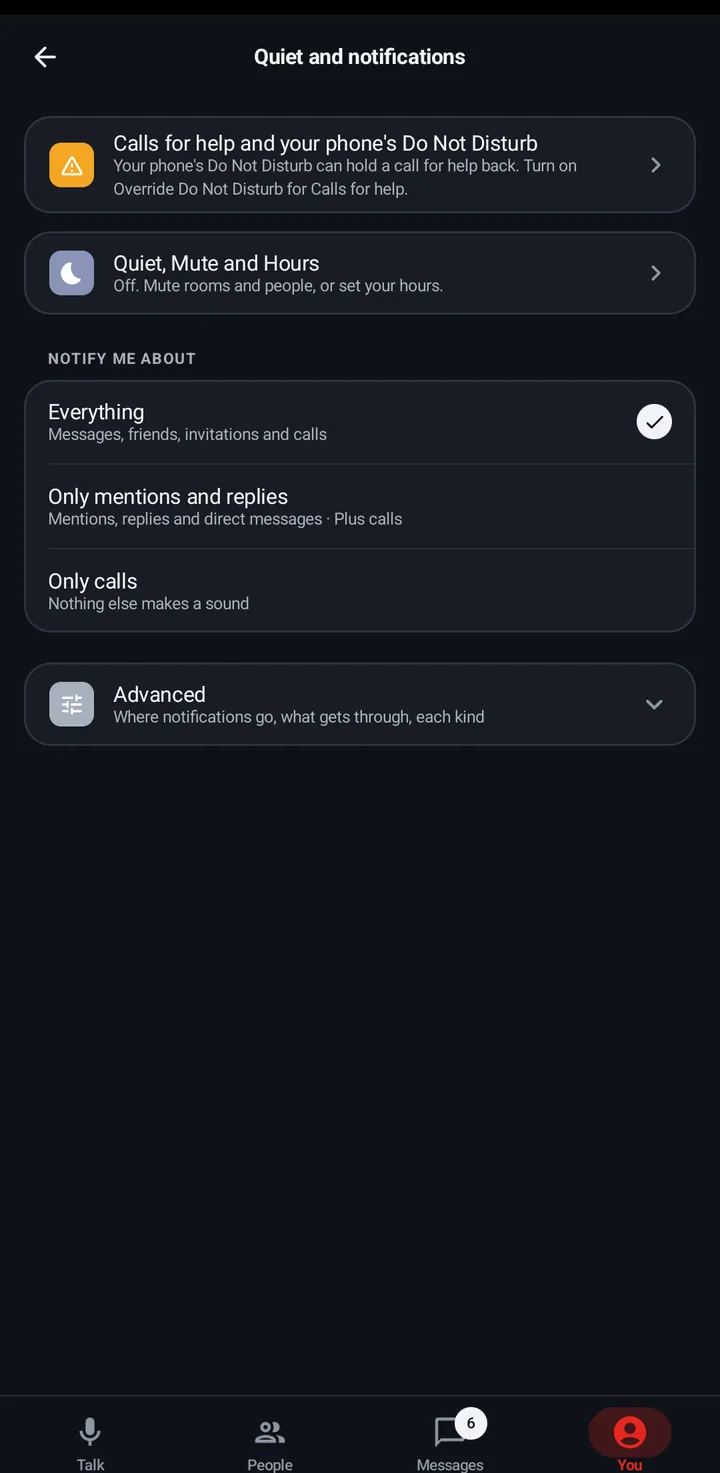
- The same sheet opens from You › Quiet and notifications › Quiet, Mute and Hours.
Watch
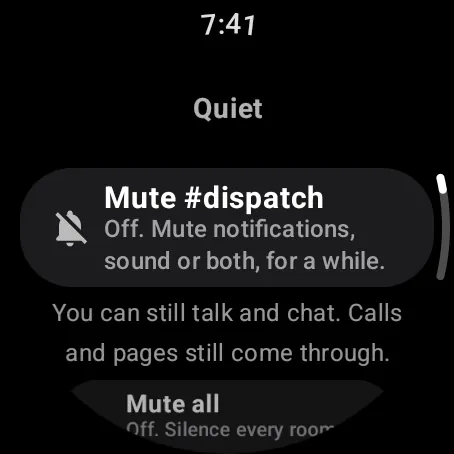
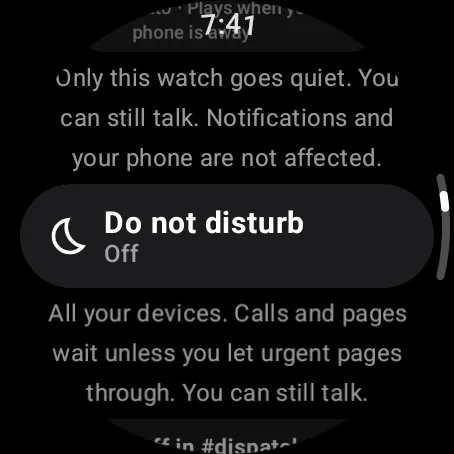
Swipe up. Quiet is the first list: Quiet all my devices with the same four lengths, then Mute and Hours. The Quiet tile has 1 hour, Until tomorrow morning and Until I turn it back on.
Web app and iPhone
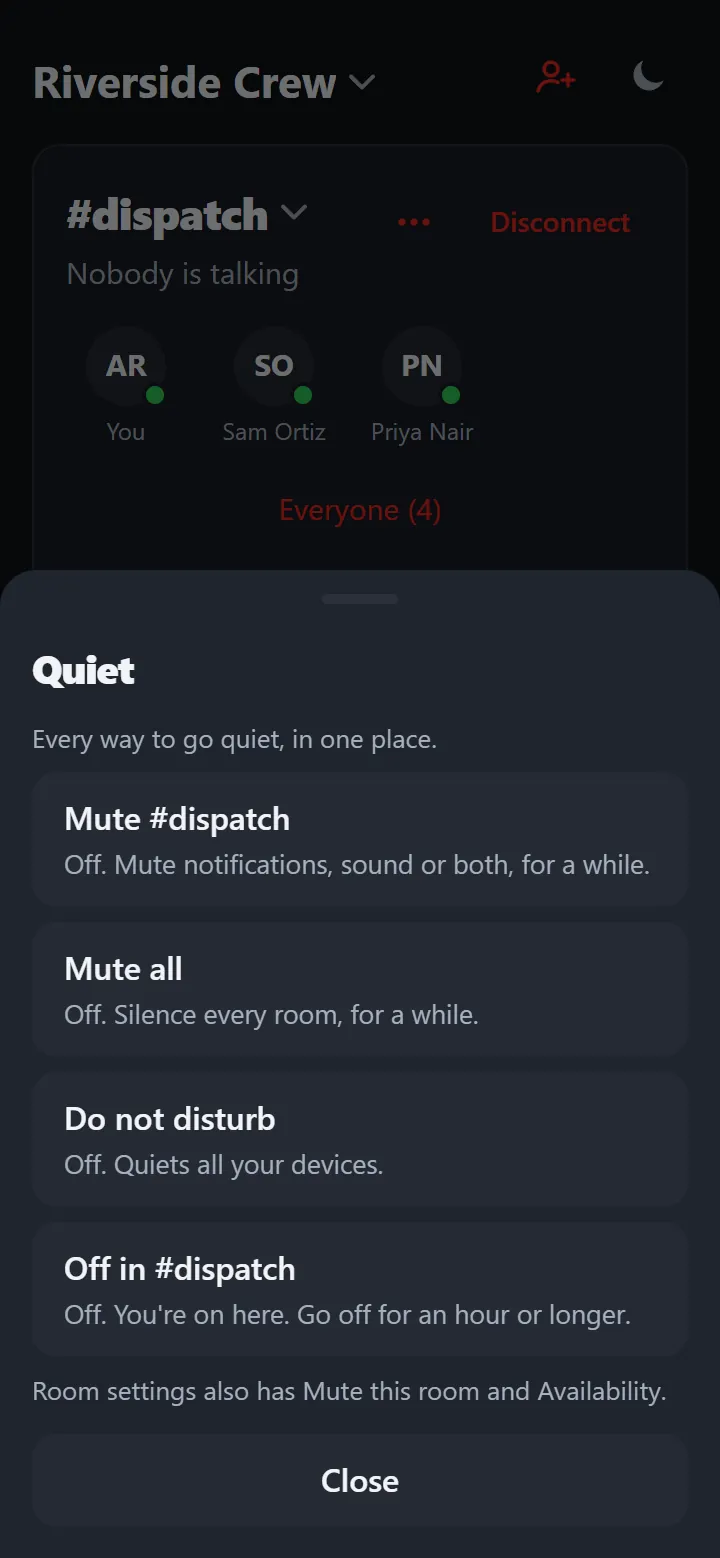
Tap the moon in the Talk header. The first row is Quiet all my devices, with the same four lengths. It is also under You › Quiet and notifications › Quiet, Mute and Hours.
Let through
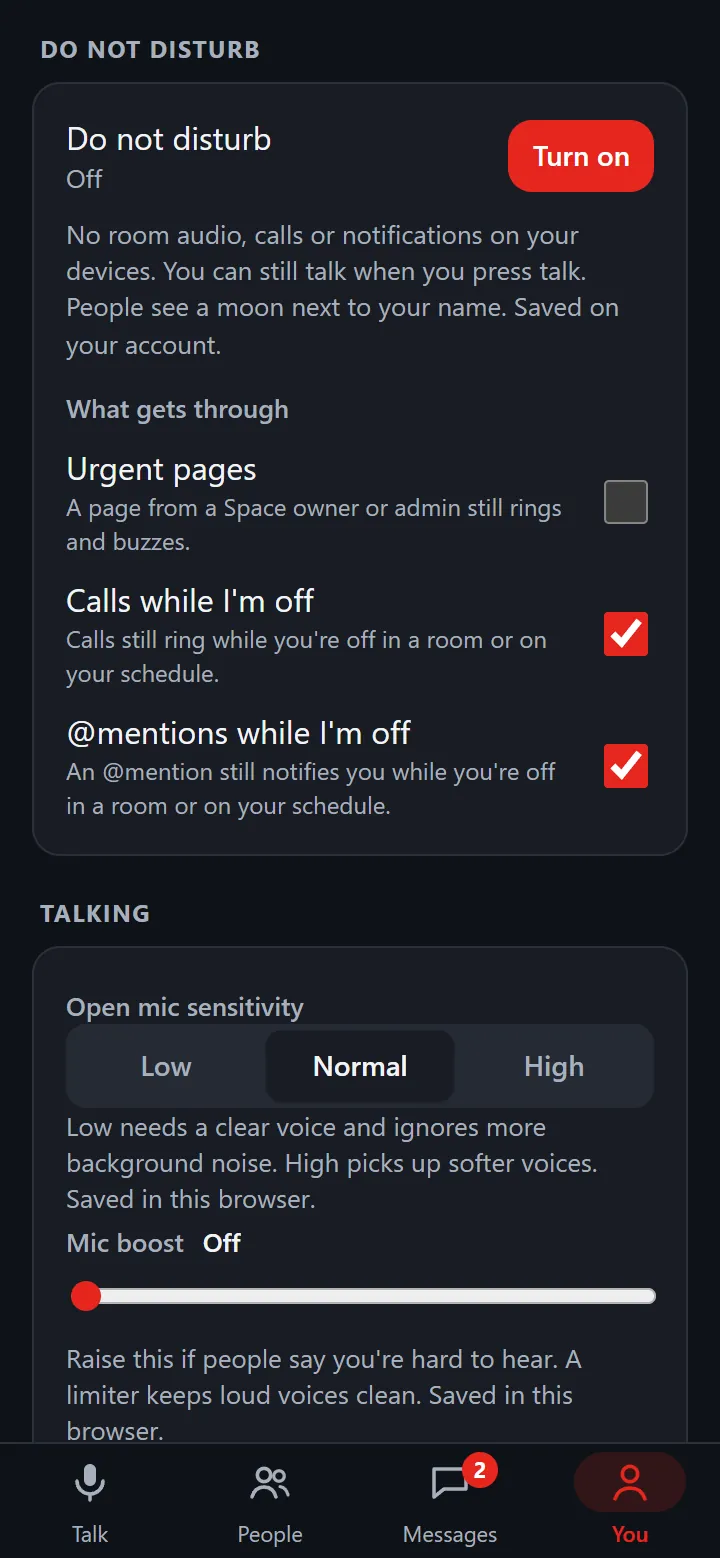
Under the switch a line names every choice you enabled: urgent pages, calls and @mentions. For example, Let through: urgent pages, calls. It says Let through: nothing only when all three switches are off. Tap it to open three switches: Calls (a call still rings while Quiet is on), @mentions (a message that mentions you still comes through) and Urgent pages (a page from a Space owner or admin still rings and buzzes). Only the choices you enable get through. Calls for help always come through. All three start off, also on a new account, and KeyUp never switches them on for you. Your choice is saved on your account, so turning Quiet off and on again keeps it, and your phone, watch and web app all show the same switches.
Phone
- Tap the Let through line under Quiet all my devices, then switch Calls, @mentions and Urgent pages on or off.
- The same switches are in You › Quiet and notifications › Quiet, Mute and Hours, the same sheet as the moon.
Watch
Swipe up, Quiet, then the Let through line under the lengths.
Web app and iPhone
Tap the Let through line under the Quiet switch, or open You › Quiet and notifications › Quiet, Mute and Hours, the same sheet as the moon.
Replies
If you talk in a room while Quiet is on, you hear that room’s replies until 2 minutes after your own last talk. Each time you talk again, the 2 minutes start over. It is only that room: other rooms stay quiet, and other people’s replies do not make the window longer.
Phone
The room line says “You hear this room until 3:42 PM”.
Watch
The status line says “Replies until 3:42 PM”.
Web app and iPhone
A note says “You’ll hear replies until 3:42 PM”.
Where the old things went
Nothing was removed, some things moved. What gets through is now the Let through switches. Mute #room, Mute all and muting a person are all in Mute. Off in #room is in Room settings › How #room reaches you, and the room modes are in Room settings › Advanced › Availability. Quiet, Mute, Hours and Rooms and mutes are one row, You › Quiet and notifications › Quiet, Mute and Hours. Where notifications go and the kinds are in You › Quiet and notifications › Advanced. Sound on this phone and Sound on this watch are the speaker button. Show when I’m away is in You › Privacy and AI › Advanced.
Lock screen privacy
A message notification on a locked phone or watch shows who and where, never what was said. The text shows once you unlock. This is automatic.
Still stuck? Email [email protected]. Tell us your phone and watch model and what you tried.