Home screen widget, shortcuts and Quick Settings tiles
A home-screen widget, launcher shortcuts, and Quick Settings tiles for Talk and Quiet. Choose whether Talk works from the lock screen. In the iPhone app, Siri, Shortcuts and Home Screen quick actions.
On the Android phone, use a widget to open your room, shortcuts on the app icon, or Quick Settings tiles for KeyUp: Talk and KeyUp: Quiet. The widget doesn’t wake your phone on a timer. The iPhone app (in private testing) has the same shortcuts for Siri, Spotlight, the Shortcuts app, the Action button and the Home Screen.
Widget
A small card with your room, who is talking, a red dot when something is unread and an Open the room button. The widget opens your room: it can’t start the mic. With no room, the button says Open KeyUp.
Phone
- Touch and hold an empty spot on the home screen, tap Widgets and pick KeyUp room.
- It says Nobody is talking, Sam is talking or You are talking. Signed out it says Open KeyUp to sign in; with no room, Open KeyUp to pick a room.
- There is a second widget, KeyUp reminders, with your next reminders. See The KeyUp reminders widget.
Web app and iPhone
Not in the web app.
Launcher shortcuts
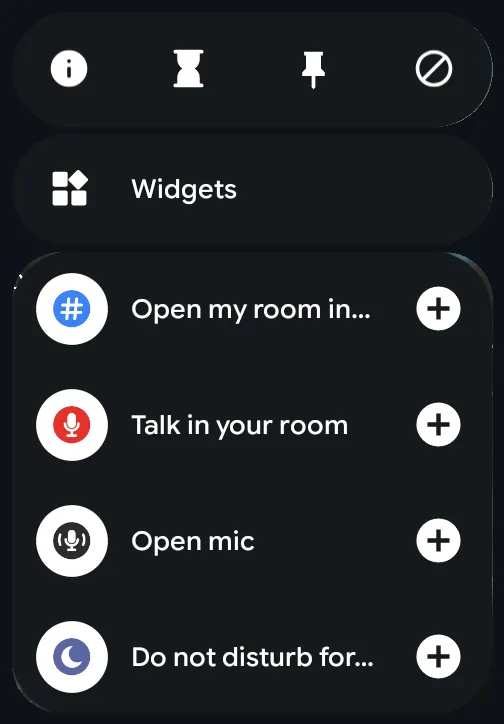
Touch and hold the KeyUp icon to see them.
Phone
- Open my room brings your room to the front.
- Talk (Talk in your room) opens your room and starts a Tap talk. Nothing goes out until KeyUp hears your voice.
- Open mic (Turn on open mic in your room) opens your room with Open mic on.
- Quiet (Quiet for 1 hour) turns Quiet on for an hour, from anywhere in the app.
iPhone
- In the iPhone app (in private testing), touch and hold the KeyUp icon on the Home Screen for the quick actions: Open my room, Talk, Open mic, Quiet and Remind me. On a guest pass only the first three show. Signed out, there are none.
- The same five work with Siri, Spotlight, the Shortcuts app and the Action button. Say to Siri: “Talk in KeyUp”, “Start a KeyUp talk”, “Turn on open mic in KeyUp”, “Open my room in KeyUp”, “Turn on Quiet in KeyUp” or “Remind me in KeyUp”.
- Each one opens KeyUp first. Talk opens your room and waits for your voice: nothing is sent before you speak. Open mic opens your room with Open mic on. Quiet turns Quiet on for 1 hour on all your devices. Remind me opens Remind me: tap the mic beside the box and say it, or type it.
- No room to open? Talk and Open mic open the Talk tab and say Open a room first, then try again.
KeyUp: Talk tile
The KeyUp: Talk tile talks in the room this phone is in. Its second line names the room when you are not talking.
Phone
- Open KeyUp, sign in and join a walkie room on this phone.
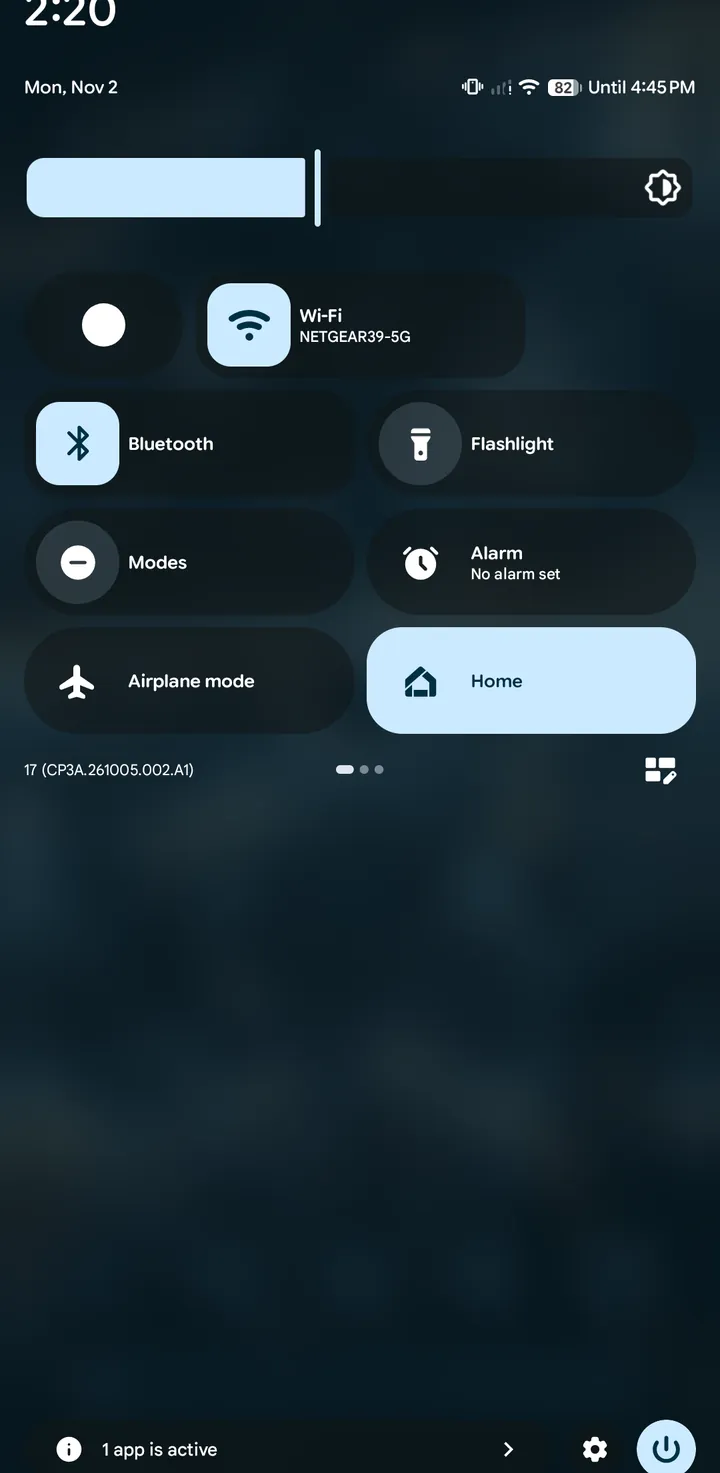
- Pull down Quick Settings, tap the edit (pencil) button and drag KeyUp: Talk in.
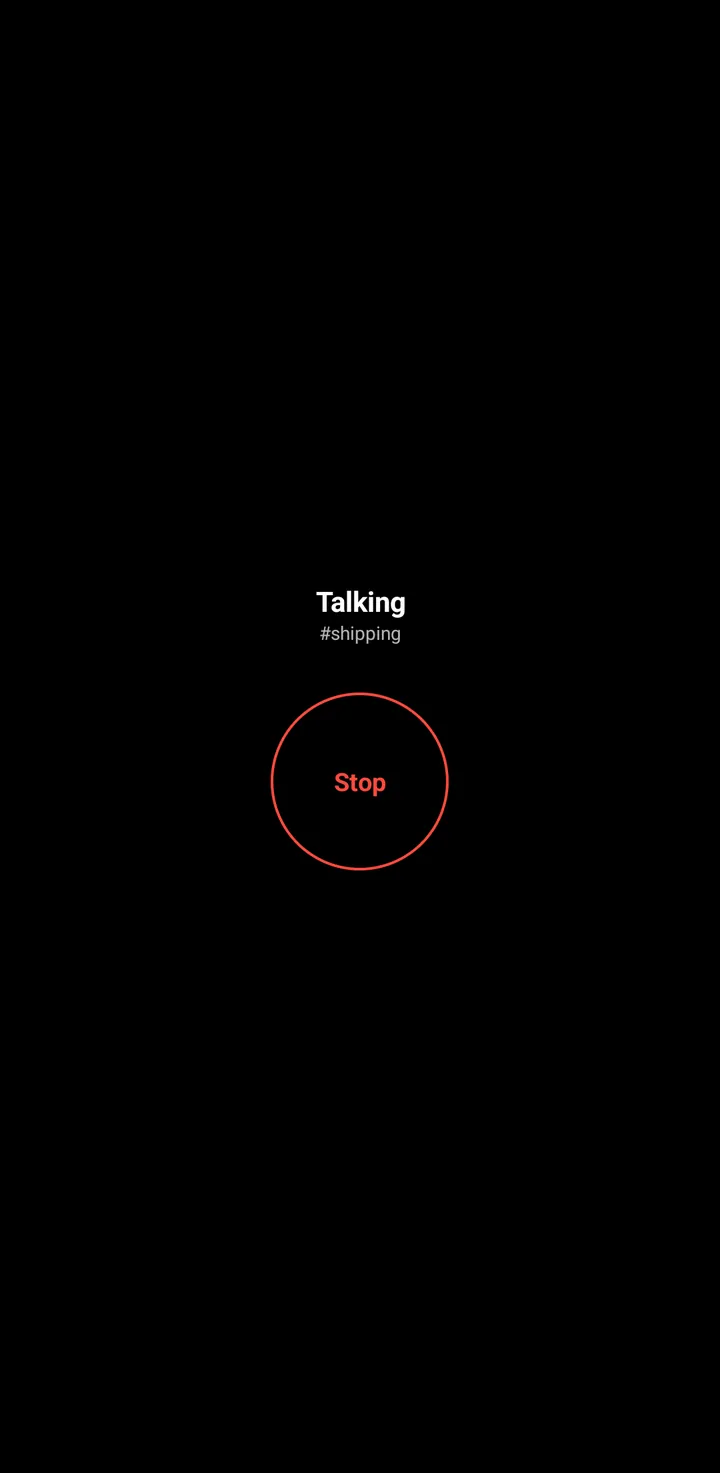
- Tap the tile to start. It opens a true black Talking screen with your room and Stop in a thin red ring. Tap Stop, or tap the tile again, to end the talk. While talking, the tile says Talking · Tap to stop.
- To use it without unlocking, turn on You › Talk › Talk with a button › Talk from the lock screen. It is off by default and applies to this phone only. With it off, Android asks you to unlock first.
- With it on, only the Talking screen shows over the lock screen. The setting warns: The KeyUp: Talk tile in Quick Settings works without unlocking. Anyone holding your phone could talk in your room.
Watch
Use the watch’s KeyUp Talk button shortcut. See Talk with a watch button.
Web app and iPhone
The Talk tile is on the Android phone only.
Quick Settings tile
The tile KeyUp: Quiet turns Quiet on for 1 hour with one tap, and off again when it is on. It shows On until 4:30 PM while it is on. The tile is named Quiet, and its name and the words in the tile picker are in your phone’s language.
Phone
- Pull down Quick Settings, tap the edit (pencil) button and drag KeyUp: Quiet in.
- Tap it. On a locked phone, Android asks you to unlock first. Signed out, it opens KeyUp. With no connection it keeps the change on this phone only and says so: Couldn’t reach KeyUp. Quiet is on for this phone only. A guest pass gets Not for guest passes.
Watch
The watch has its own Quiet tile. See Watch tiles and complication.
Still stuck? Email [email protected]. Tell us your phone and watch model and what you tried.