Who is here
See who is in the room and what they are doing, and open a person’s sheet for volume, mute, page and more.
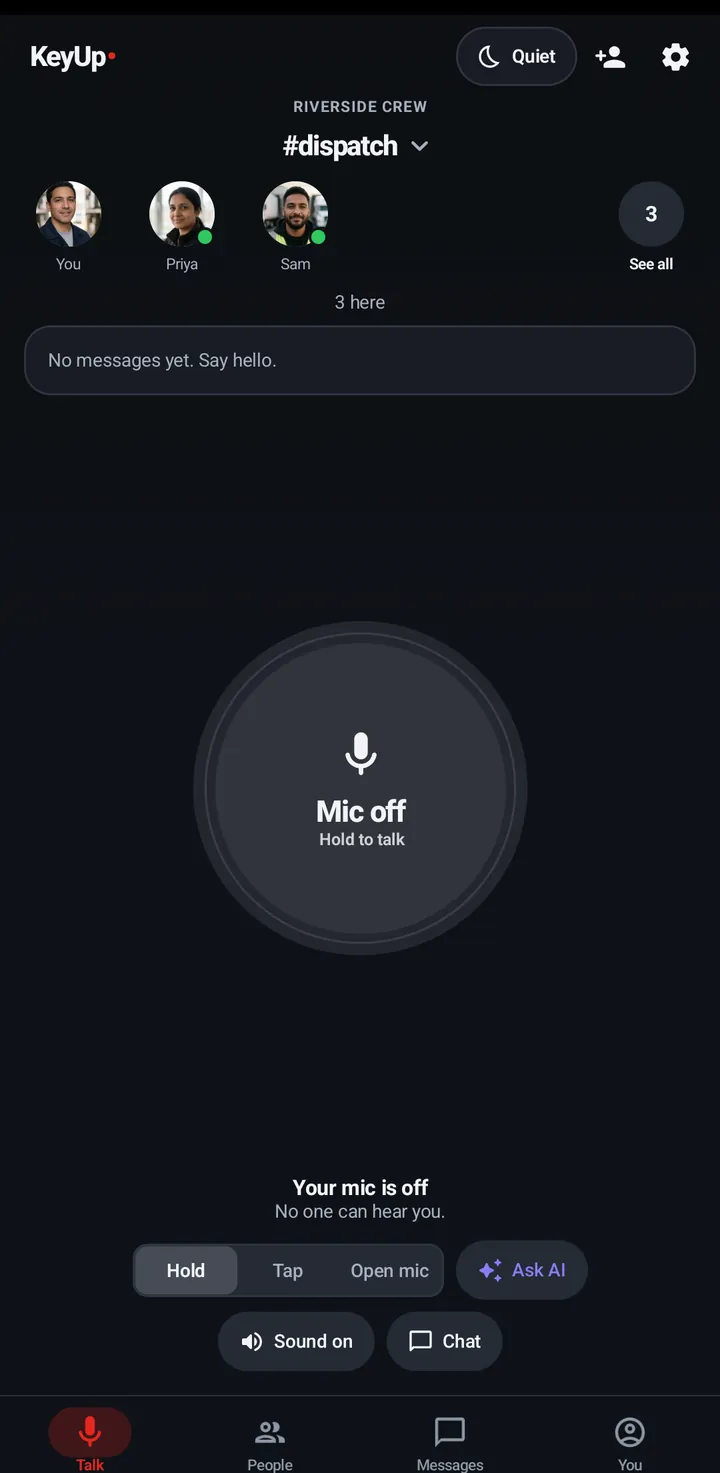
The faces at the top of a room are the people connected now, with you first. Under a face you may see Away, Quiet, Off (off in this room), Muted for you or Listening (hearing this room from their own room).
Who is here
Phone
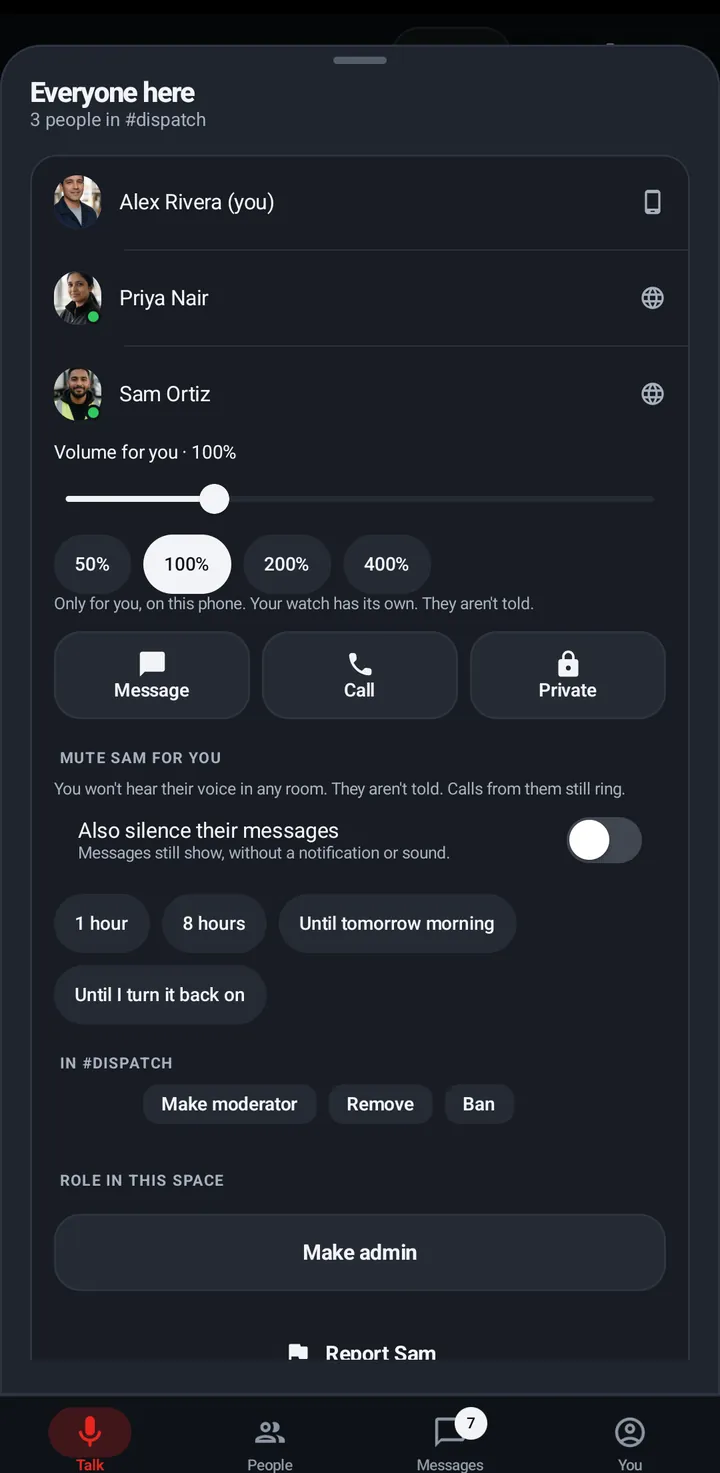
- Tap or long press a face for that person’s actions.
- Tap See all for Everyone here: people connected now, with volume, mute, message and call.
- Members who aren’t connected are under Also in this room, with where they are or when they were last here.
Watch
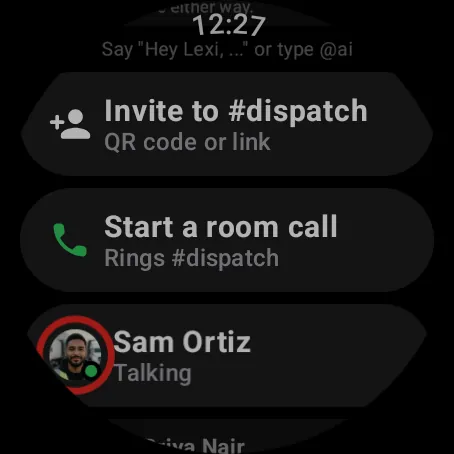
- Swipe up, In this room lists everyone with Talking, Listening, Muted for you, Off, Quiet or Away.
- Tap a person for their screen.
Web app and iPhone
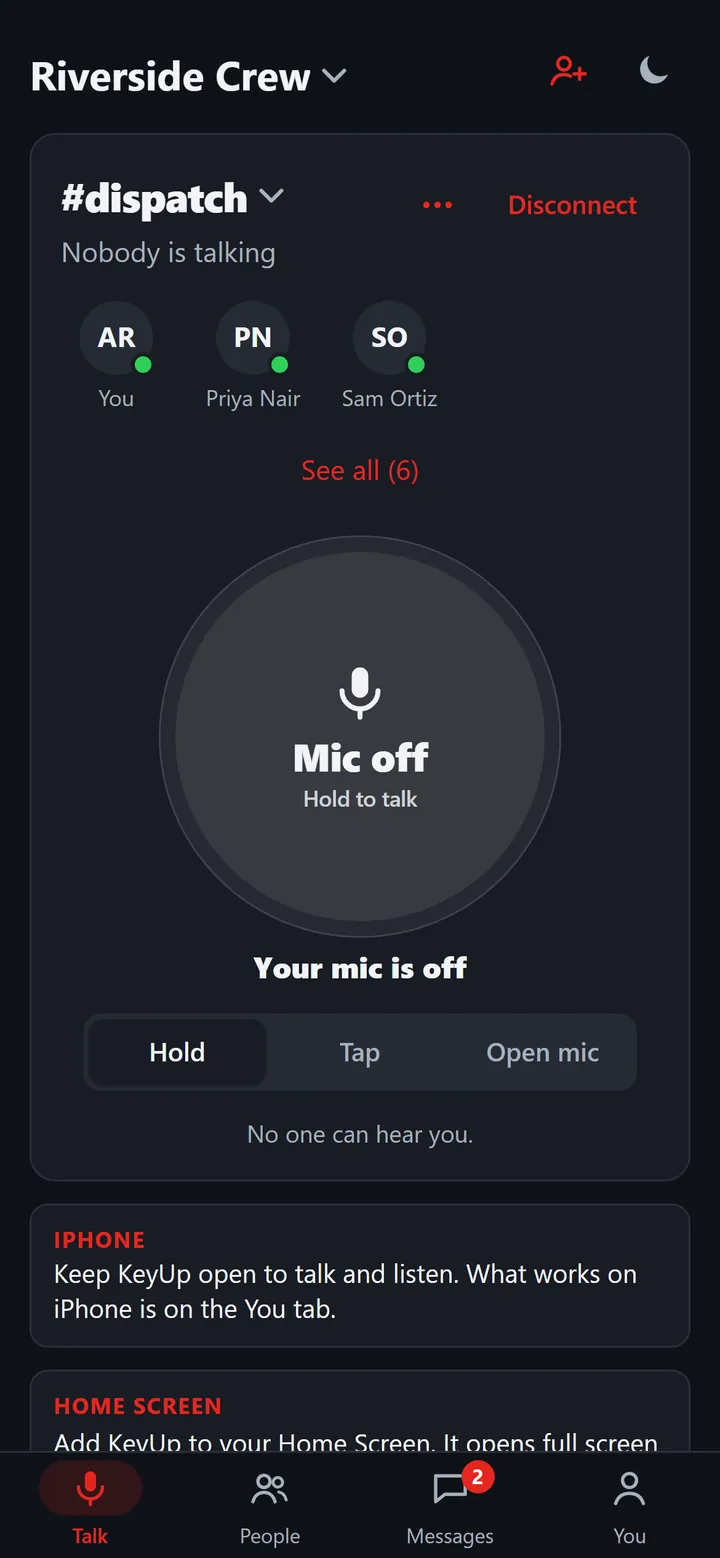
- The people row on the room card: a green dot is here, yellow is Away, a moon is Quiet, blue is listening from another room, grey is off.
- See all (N) opens People in #room, with the rest of the Space after the people here.
iPhone
In the iPhone app (in private testing), the People tab shows Online now faces and Everyone in [Space] with the same dots, each person with Message and Call buttons. The chips at the top (Everyone in [Space] · N, then one per room) show just the people of one room. The Invite people card opens the invite sheet, and the Space button at the top opens your Spaces.
The person sheet
Tapping a person opens their sheet (on the watch, their screen) with everything you can do with them.
Phone
- Tap a face, a row in Everyone here, or a person on the People tab.
- You see Volume for you, Message, Call, Private, Ask to join #room, Add [name] as a friend, Mute [name] for you, admin actions like Make admin (or Remove as admin), Make moderator, Remove and Ban, and Report [name].
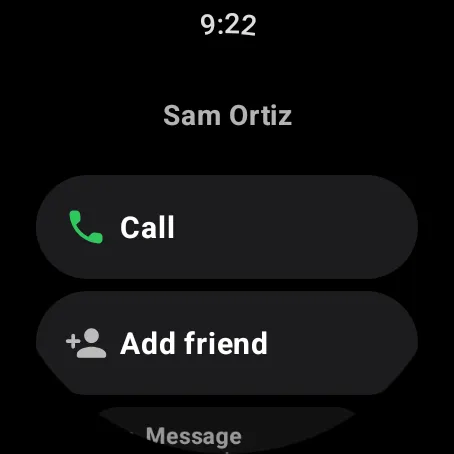
Watch
In this room › tap a person: Call, Private call, Message, Ask to join, Volume, Mute, Add friend, Report, and for owners and admins Page and Make admin.
Web app and iPhone
Tap a person: Volume for you, Message, Mute for you, Block and Report, and for owners and admins Make admin (or Remove as admin), Remove from #room, End guest pass and Page [name].
Still stuck? Email [email protected]. Tell us your phone and watch model and what you tried.