Other ways to talk on the watch
Tap or hold the on-screen button, double tap the dimmed screen, double pinch on a Pixel Watch, or assign KeyUp Talk to a watch button.
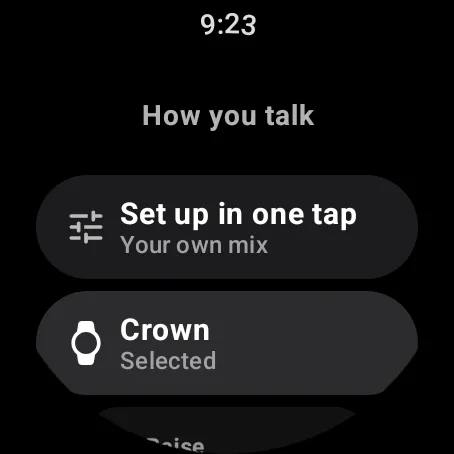
Besides the crown and Raise, the watch has four more ways to talk: Tap the button and Hold the button on the screen, a double tap on the dimmed screen, Double pinch on a Pixel Watch, and KeyUp Talk on a watch button. Pick the one you want in Settings › How you talk.
Tap the button, Hold the button and double tap
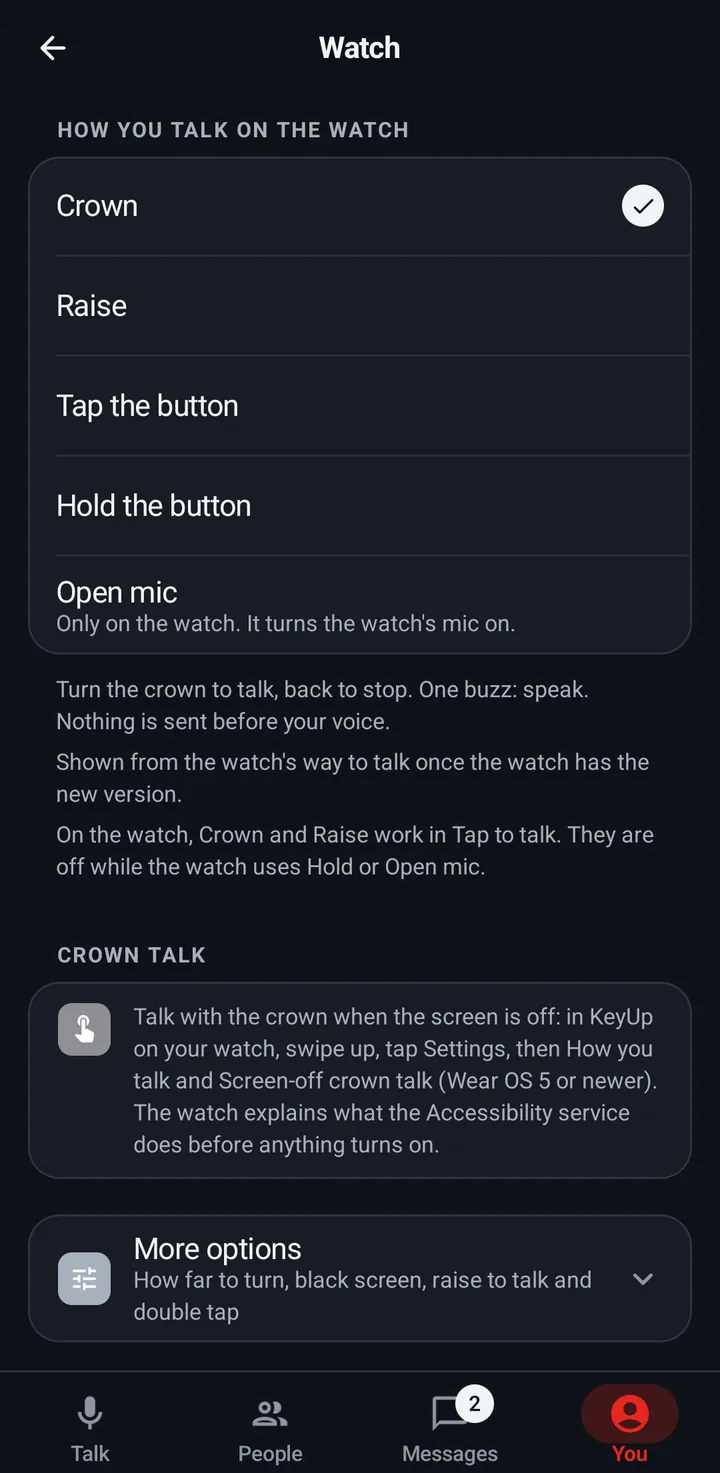
Tap the button and Hold the button turn off crown and raise talk, so only the button talks: tap to start and tap again to stop, or hold while you talk. (The watch’s first-time setup calls Tap the button Screen only.) Double tap the dimmed screen to talk starts and stops a talk while KeyUp stays on the dimmed screen.
Watch
- Swipe up, tap Settings › How you talk.
- Pick Tap the button or Hold the button.
- If you want it, turn on Settings › How you talk › Advanced › Double tap the dimmed screen to talk. It needs KeyUp to stay on the dimmed screen, which turns on by itself with it.
Phone
The same choices are in You › Talk › On my watch. Double tap the dimmed screen is set on the watch.
Double pinch (Pixel Watch)
Double pinch is a way to talk on a Pixel Watch, like Crown or Raise. Tap your index finger and thumb together twice to start a talk, and do it again to stop. Pick it in How you talk. While it is picked, turning the crown and raising your wrist don’t start a talk. It works while KeyUp is on the watch screen, and it has its own choices.
Pick Double pinch
Watch
- On the watch, open Settings › Gestures and turn on Double pinch. The name can vary a little by watch.
- In KeyUp, swipe up, tap Settings › How you talk and pick Double pinch. Its note says Double pinch to talk, again to stop. One buzz: speak. Nothing is sent before your voice.
- If the watch’s own Double pinch is still off, a row under the choices says Turn on Double pinch and Off in watch Settings. Tap to open. Tap it to go to the watch’s gesture settings, turn it on, then come back.
Phone
Once your Pixel Watch has opened KeyUp, You › Talk › On my watch lists Double pinch with the other ways to talk on the watch. Turning on the watch’s own Double pinch happens on the watch.
Its own choices
Watch
- With Double pinch picked, open Settings › How you talk › Advanced. Double pinch has its own rows there.
- Always-on display says whether a pinch also works on the dimmed screen: On. Double pinch also works on the dimmed screen, or Turn on Always-on display to pinch with the screen dimmed. Tap it to open the watch’s Display settings.
- Dim screen: Clock and room (the time, your room and a hint) or All black (KeyUp shows nothing at all while the watch is dimmed).
- Black screen while talking: for a talk you start on the dimmed screen, The screen stays black while you talk. Off to start with.
- Stop talking: When I stop speaking (the talk ends a few seconds after your voice stops, as with the crown) or When I pinch again (the talk stays open until your next double pinch).
When it works
Watch
- Screen on, KeyUp in front: every double pinch starts or stops a talk.
- Dim screen: with Always-on display on in the watch’s Display settings, KeyUp stays on the dim screen and a double pinch still works. Keep KeyUp on screen stays on while Double pinch is picked and says On while you talk with Double pinch. While it is on, the small KeyUp mark shows on the watch face, even with Show KeyUp on the watch face off.
- Screen fully off, or the watch face in front: the pinch goes to the watch, not to KeyUp. Turn the crown instead; it works with the screen off. See Crown talk with the screen off.
- On a watch with an older Wear OS update, a double pinch works only with the screen on, and the Always-on display row says On this watch Double pinch works with the screen on.
An all black dim screen
Watch
- Swipe up, tap Settings › How you talk › Advanced › Dim screen. With Double pinch picked it is in Double pinch’s rows; otherwise it is right under Keep KeyUp on screen.
- Each tap switches between Clock and room (the time, your room and a hint, as before) and All black (KeyUp shows nothing at all while the watch is dimmed).
A watch button (KeyUp Talk)
KeyUp Talk is a second app entry on the watch, with a small mic on the KeyUp icon. Assign it to a button your watch lets you choose. Your usual way of talking, such as Raise or Crown, stays as you set it.
Choose the button
Watch
- Open KeyUp on the watch once, and join a walkie room.
- On a new install the extra app entries start off, so the watch shows one KeyUp icon. On the watch open Menu › Settings › How you talk, scroll to Watch button shortcuts, and turn KeyUp Talk On (and Remind me, if you want it). After an update from an older version they are already on.
- On a Samsung watch, open the watch’s Settings › Advanced features › Customize keys › Double press Home and pick KeyUp Talk.
- On a Galaxy Watch Ultra, open the watch’s action button settings and pick KeyUp Talk where an app can be chosen. The choices depend on the watch and its software.
- A button can also open Remind me instead. KeyUp Remind me is another app entry next to KeyUp Talk in the same app list: pick it in the same place. One press opens the reminder recorder. See Say it to KeyUp.
- To hide those extra app icons: on the watch open Menu › Settings › How you talk, scroll to Watch button shortcuts, and turn KeyUp Talk and Remind me Off. They leave your app list (this watch only). The Reminders list in KeyUp’s Menu stays; that is separate from the app-list icon.
Start and stop
Watch
- Use the button action you assigned. It wakes the watch and opens a true black Talking screen with a small red dot, Stop in a thin red ring and What was said under Stop.
- The arming buzz means the mic is ready. Speak when ready: nothing is sent until your voice is heard, just like a crown talk.
- To stop, press it again with the same button action, or tap Stop. The screen closes when the talk ends.
- To read the room’s text, tap What was said under Stop. It ends your talk first, then opens the room’s transcripts.
Still stuck? Email [email protected]. Tell us your phone and watch model and what you tried.