Add your watch
Tap Sign in from your phone on the watch, or approve its code from any browser at keyupradio.com/pair or from your phone. If the code does not work, start here.
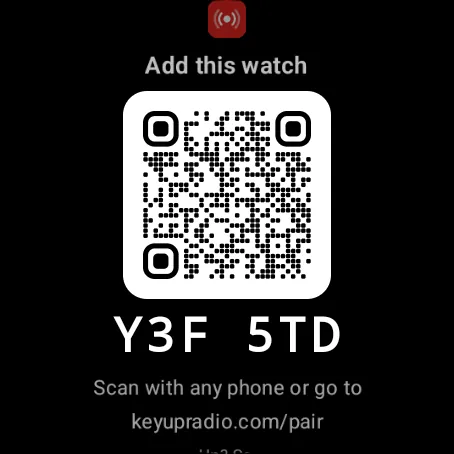
A signed-out watch shows Add this watch with a QR code and a 6-letter code. If the watch is paired to an Android phone that is signed in to KeyUp, it also shows Sign in from your phone: one tap, and no code to type. Otherwise you approve the code once and the watch signs in by itself. The code works for 10 minutes. If the watch will not pair, see “My watch won’t pair” at the end of this page.
From your phone, in one tap
Watch
- Open KeyUp on the watch. Above the code, tap Sign in from your phone.
- The watch asks Sign in as Ed? with your account name. Tap Sign in to confirm. The watch signs in by itself, as a device of its own. Tap Not me, or go Back, and the phone cancels it too.
- The sign-in ended before you confirmed it (you tapped Cancel on the phone, or 10 minutes went by)? The watch goes back to the pairing screen and says That sign-in ended. Tap Sign in from your phone again.
- No button? Your watch is paired to an iPhone, to a phone without KeyUp, the phone is signed out or on a guest pass, or the phone is not near the watch. Use the code instead.
- The watch says Turn on notifications for KeyUp on your phone, or use the code.? The phone only signs a watch in when it can show you its notice, so turn KeyUp’s notifications on, or use the code.
- The watch says Bring your watch next to your phone, or use the code.? The phone also checks that the watch asking is near it, and refuses a watch that is not nearby or that it can’t find. Move the watch next to the phone and tap Sign in from your phone again, or use the code.
Phone
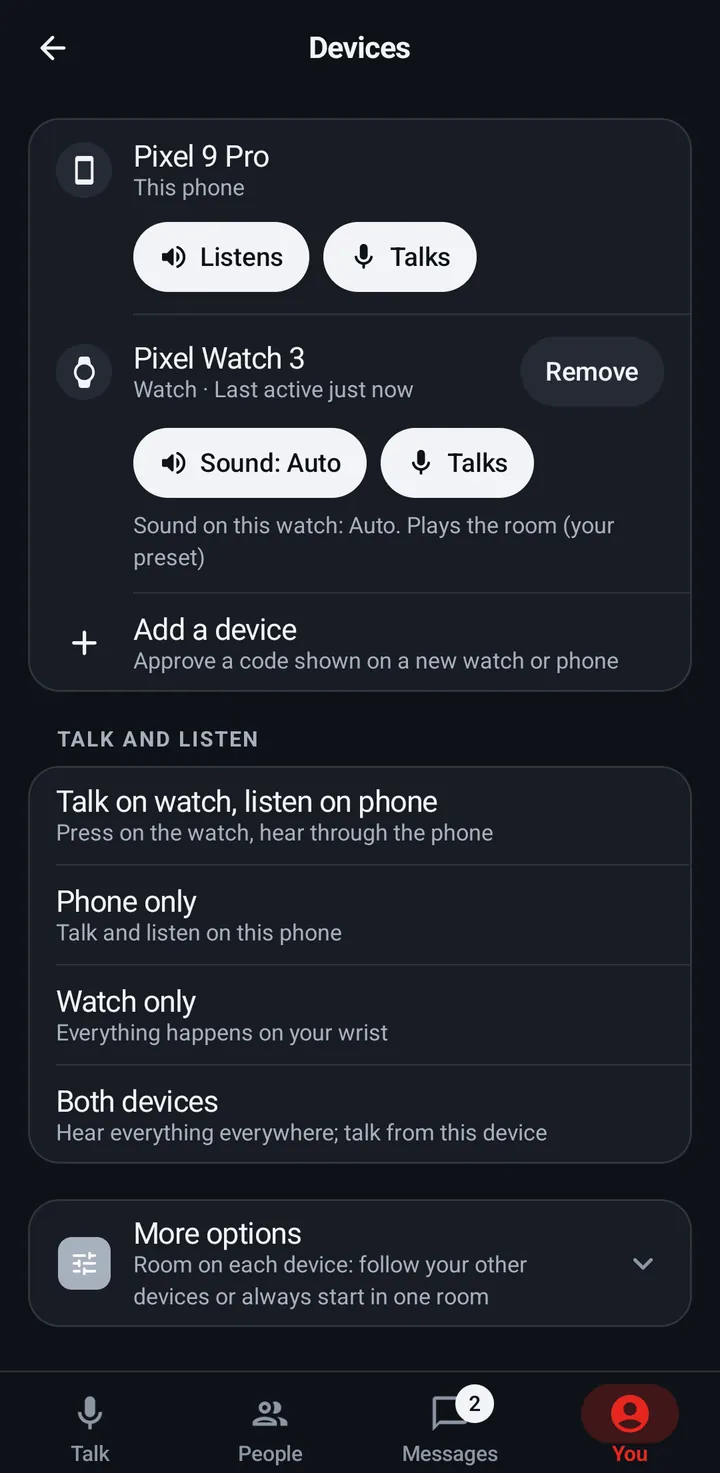
- Nothing to type. Your phone shows a notification, Your watch Pixel Watch is signing in, with Cancel. It stays for 10 minutes or until the watch has signed in. Tap Cancel if that is not your watch: before the watch signs in it voids the code, and after that it removes the watch from your devices. Cancel works even if you closed KeyUp on the phone in between. If it can’t reach KeyUp, the notice stays and says Couldn’t cancel. Check your connection and tap Cancel again.
- Once the watch has signed in, a phone that is online changes the notice to Pixel Watch signed in as you, with Not you? Tap Remove to sign it out. It stays for 24 hours. Remove does what You › Devices › Remove does, but it never removes a watch the phone is not sure about. If it can’t tell which device is the watch, or the sign-in had only ended or been cancelled, the notice just goes away and nothing is removed. Check You › Devices to remove it yourself.
- The watch then shows in You › Devices like any other device.
From any browser (the pairing page)
Watch
- Open KeyUp on the watch. You see Add this watch, the QR code and the code. Tap New code if it ran out.
- New to KeyUp? Scan the code anyway: the pairing page lets you create an account, then adds the watch.
Web app and iPhone
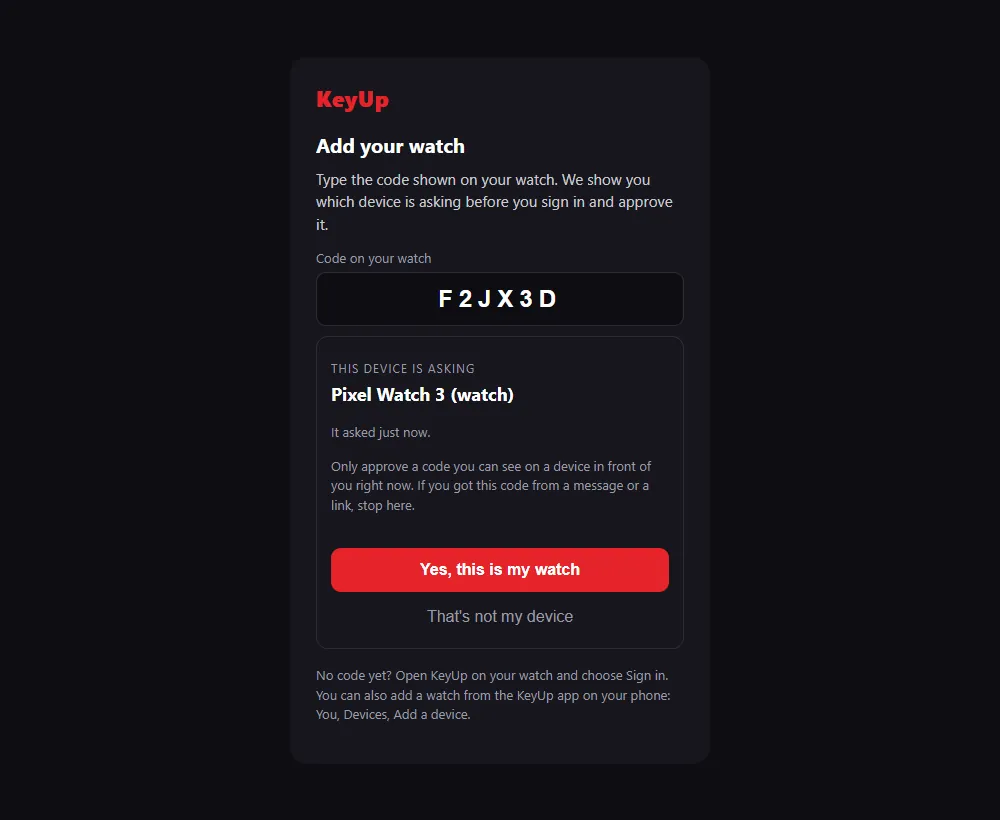
- Scan the QR code with any phone camera, or go to keyupradio.com/pair. With KeyUp installed on an Android phone, scanning opens Add a device when your phone allows KeyUp links. Sign in first if needed. Otherwise, use the browser pairing page. You can also use Sign in from your phone on the watch or You › Add my watch on your phone.
- Read the six characters from the watch you are holding and type them into the app or browser. Scanning alone never adds a device. Check which device is asking and which account you are using before approving. The browser clears the code from its address and explains this check.
- It shows This device is asking with the watch’s name. Tap Yes, this is my watch (or That’s not my device).
- Sign in with your username or email on the I have an account tab, or use I’m new to KeyUp (needs your birth year).
- Tap Add my watch. The watch signs in by itself.
From your phone
Phone
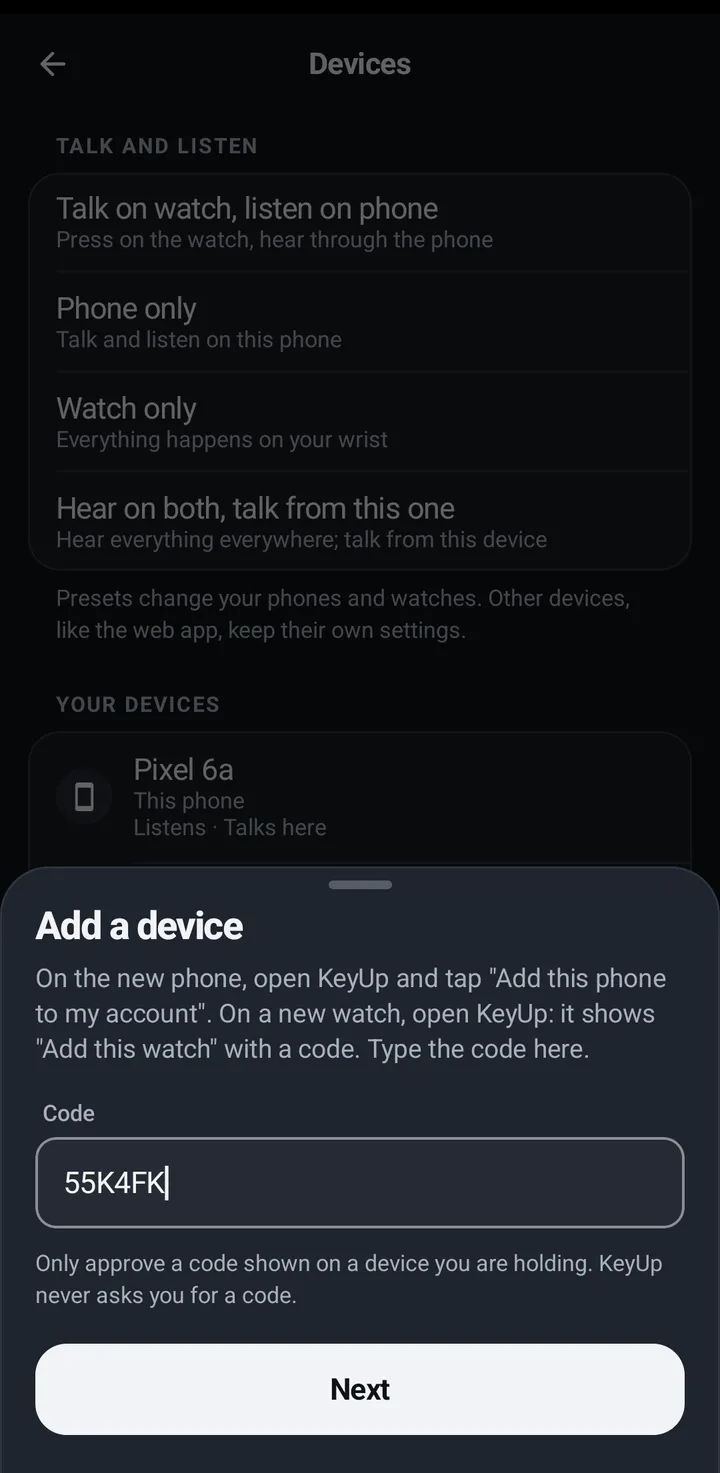
- On your signed-in phone, go to You › All settings › Devices › Add a device. In Simple mode, tap You › Add my watch. It shows while no watch is on your account; to add another watch, use You › All settings › Devices › Add a device. In Classic look these are More › Add my watch and More › All settings and features › Devices › Add a device.
- Type the code the watch shows and tap Next.
- KeyUp shows which device is asking, for example Sign in Pixel Watch as you? and Watch · asked just now. If it is the watch on your wrist, tap Approve. Otherwise tap Cancel.
- The phone then says Pixel Watch signed in as you, with Not you? Tap Remove to sign it out. The watch signs in by itself. See Approve a new device.
My watch won’t pair
A watch code works for 10 minutes and only once. Most pairing trouble is an old code or a device that is offline.
Watch
- Paired to an Android phone with KeyUp signed in? Tap Sign in from your phone above the code and confirm on the watch. No code to type.
- Tap New code on the Add this watch screen and use the new one right away.
- Check the watch has Wi-Fi or LTE.
- When pairing fails, the watch says why: Code expired. Tap New code. when the code ran out or was already used; That code isn’t right. Check it and try again. when it was typed wrong; This device can’t be added. when the account’s owner blocked this watch; or, for a suspended account, This account is suspended. with To appeal, write to an address. An account that isn’t available says This account isn’t available. and the address to write to, with no new code to try. Anything else says Couldn’t add this watch. Try a new code.
- Tapped Cancel on the phone notification before the watch signed in? The watch goes back to the pairing screen and says That sign-in ended. Tap Sign in from your phone again. It says the same when the 10 minutes ran out. Tapped it after? The watch is removed from your devices and signed out, like Devices › Remove. Either way, tap Sign in from your phone again, or use a new code.
Phone
- Type the code in You › Devices › Add a device on your phone, not in the watch’s own settings.
- No Sign in from your phone on the watch? The phone must be an Android phone with KeyUp signed in to a full account (not a guest pass), near the watch, and the watch must be the one paired to it. An iPhone, a phone without KeyUp, or a phone that is far away needs the code. The phone also checks, and if the watch is not nearby the watch says Bring your watch next to your phone, or use the code. With KeyUp’s notifications off on the phone, the watch asks you to turn them on or use the code.
Web app and iPhone
Or go to keyupradio.com/pair and type the code there.
Still stuck? Email [email protected]. Tell us your phone and watch model and what you tried.