Watch quick guide
One page to read top to bottom: the talk screen, the ways to talk, the swipe-up controls, Settings, Stop KeyUp, Report a problem and what the watch leaves to the phone.
KeyUp on a Wear OS watch, in the order you meet it: the talk screen, the ways to talk, the list you get by swiping up, Settings, how to stop KeyUp, how to report a problem, and the few things the watch leaves to the phone. Each part is short and links to the full topic.
The talk screen
Watch
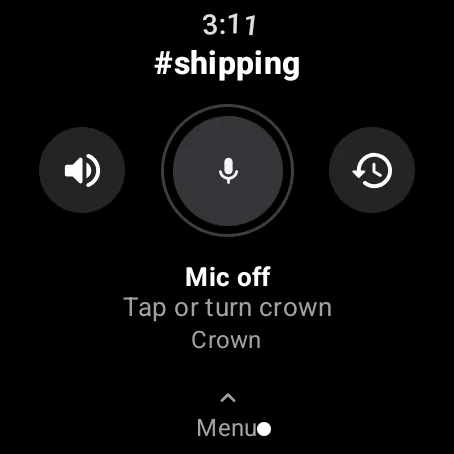
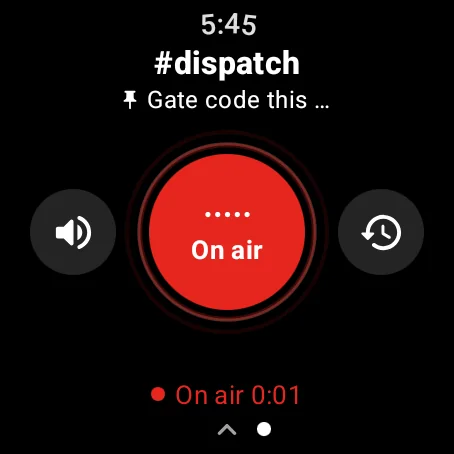
- Open KeyUp. The talk screen has a smaller talk button with a round icon on each side. The defaults are Mute and read on the left and What was said on the right.
- The button tells you where you are. Grey and Mic off is waiting. Red and On air, with a timer, means the room hears you. Amber and Waiting means someone else is talking, with their name under the button.
- Tap Mute and read to turn Sound on this watch Off. Talks show as words when the room has transcripts, or as “Sam talked” without them, with one buzz. If your phone (or another device of yours) is playing the room, the watch stays quiet instead: the words stay on its talk screen, with no buzz and no notification. Tap the card for What was said. Tap the icon again, or connect headphones to the watch, to put your previous Sound setting back. See Mute and read.
- Tap the What was said icon to read the room’s text. A long line ends in See all: tap it to read the whole line, and tap again to fold it. A long chat message shows See all too and opens whole. Back returns to the talk screen.
- In a chat room the line under the button says Chat room, since there is no talking there. With no room, the top says No room, the circle says Pick a room and the line says Swipe up to pick a room.
- While a talk plays, tap or press the talk screen to stop hearing that talk. Replay keeps the whole talk, from the start. The next tap talks as usual. This does not change the tap that stops your own talk or an assistant question.
- Swipe left or right to change room. A Switch to #room? screen shows for 4 seconds with Switch and Cancel.
- A call rings full screen with Accept and Decline.
The ways to talk
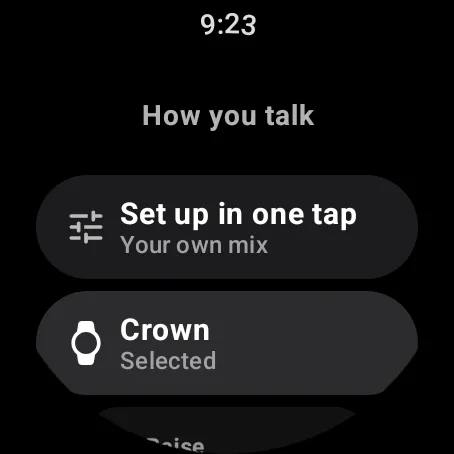
Pick one in Settings › How you talk. The one in use says Selected, and a way the room doesn’t allow says Not in this room. You can change it any time; nothing is removed when you switch.
Watch
- Crown: turn the crown clockwise to start talking and back to stop. See Talk with the crown.
- Raise: raise the watch to your mouth, wait for the light tick and talk. Lower it to stop. See Raise to talk.
- Tap the button: tap to start, tap again to stop. Hold the button: talk while you press. See Tap the button, Hold the button and double tap to talk.
- Open mic: the button shows Listening and sends only when it hears your voice. It says Uses much more battery, and Turn off Open mic is under the choices. See Open mic.
- A Galaxy Watch has no crown, so Crown follows the bezel: turn the bezel on a Classic model, or slide a finger around the screen edge on the others, with the touch bezel on in the watch’s own Settings › General › Touch bezel.
- Not sure what to pick? Settings › How you talk can set a whole setup in one tap. See Set up in one tap.
Swipe up for the controls
Swipe up from the talk screen to get the list of controls. These are the ones to know, in the order they come.
Watch
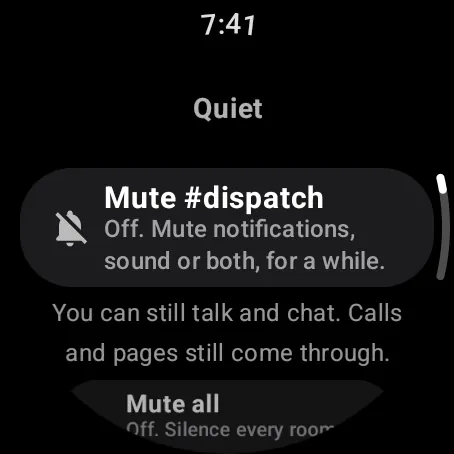
- Quiet comes first: Quiet all my devices with four lengths (the Quiet tile also has 1 hour, Until tomorrow morning and Until I turn it back on). See Quiet, Mute and Hours.
- Deep sleep during Quiet is under Quiet, off by default. With it on and KeyUp closed, the watch saves battery during Quiet, Bedtime mode or while you are off in the room you are in. Calls for help, calls and pages still come through; talks wait for you. Voices of people you let through Quiet do not play while asleep. See Deep sleep during Quiet for waking and the Replay limits.
- Mute is under Quiet: pick what to mute (Notifications, Sound or Both) and a length. All rooms and People muted are in the same list.
- Hours is under Quiet too: your weekly schedule, seven windows with days, From and To.
- Settings is the next chip (see below).
- Rooms: tap a room to switch to it. At the end: New room, New Space and Switch Space.
- Replay last and Last 10 play talks heard in your current room, on this watch only, within the room’s Keep clips for time. Switching rooms stops a replay. See Replay.
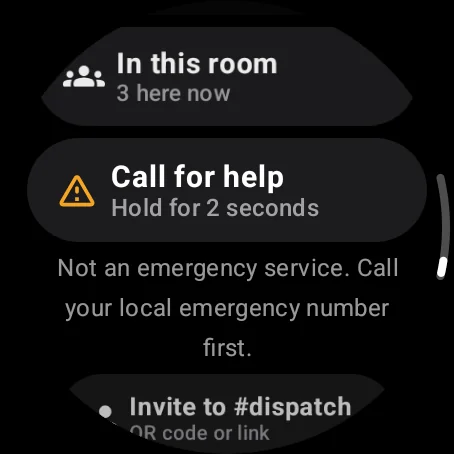
- Call for help: press and hold for 2 seconds until it says who it went to, like Sent to 3 people. It is not an emergency service, so call your local emergency number first. See Call for help.
- Remind me and Reminders: say when and what, like “remind me in 20 minutes to check the oven”, and see your list with Done and Snooze. It works on every plan. See Reminders.
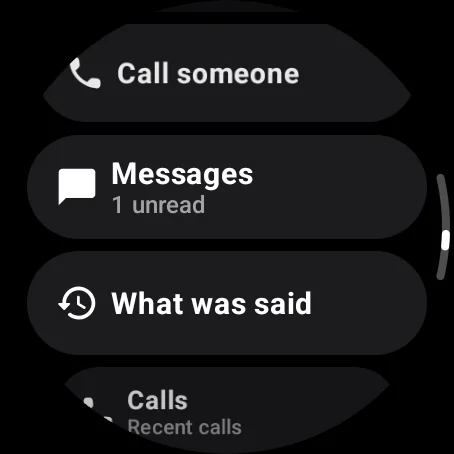
- The rest of the list: Ask AI (in rooms with an assistant for you), How you talk, Call someone, Messages, What was said, Calls, Friends, In this room and Invite to #room.
- What was said is directly under Messages, with the newest transcript line. Tap to read the room’s text. The missed-talks card also has What was said under Play. Back returns to where you opened it. Text needs transcripts in the room. See Transcripts.
- Stop KeyUp is also at the end of the swipe-up controls list (October 2026 update). See Stop KeyUp below.
Settings
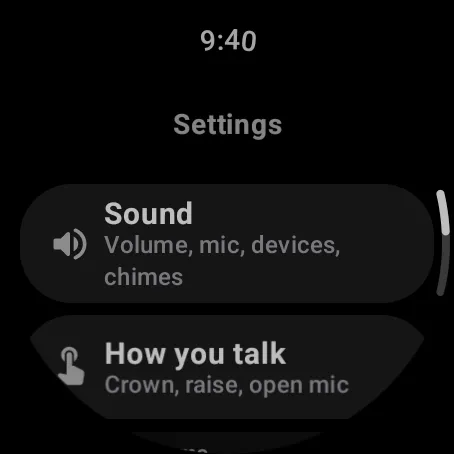
Swipe up and tap Settings. It has five parts, top to bottom.
Watch
- How you talk: the five ways above, Talk screen icons for the two side icons, and Advanced for the rows that belong to the way you picked.
- Sound: Sound on this watch (Auto, On or Off; Auto plays the room on the watch only when the phone is away) and Mic on this watch.
- Sounds and vibration: Talk sounds, Someone starts talking, Message sounds, Ringtone, Pause music while someone talks or while you talk, and under Advanced Buzz style (Light, Medium, Strong, Heartbeat or Like my watch). The watch has its own list; the phone’s doesn’t sync. See Sounds and vibration.
- Notifications and rooms: Notify me about, Where notifications go, what to Show on this watch, My schedule and leaving a Space. See I’m not getting notifications.
- You: Privacy, Appearance, Account (sign out, Devices) and Help. Set a status is here too.
Stop KeyUp
Stop KeyUp keeps you signed in but stops KeyUp listening until you open it again.
Watch
- Tap Settings › You › Help › Stop KeyUp (it is also in Settings › You › Account). The watch asks Stop KeyUp? with Stop and Cancel both in view, and Stop stops it at once.
- A shorter way: Stop KeyUp is also at the end of the swipe-up controls list (October 2026 update).
- Rooms stop, and the crown and Raise stop too, until you open KeyUp again. Alerts still come: calls, messages and calls for help.
- There is no countdown and no Undo. To start again, open KeyUp. The watch tile says KeyUp is stopped. Tap to start.
Report a problem
If something goes wrong, report it right away, so the log still covers it.
Watch
- Tap Settings › You › Help › Report a problem. It sends the watch’s own log: connections, when talks started and stopped, errors, and a short trail of the last 2 minutes of steps.
- Logs never include audio, names, messages, transcripts, passwords or sign-in keys. Tell us in the report what you did and what you saw. See Report a problem or suggest a feature and Send logs to support.
What the watch can’t do
The watch is for talking, quick replies and quiet. These are set on the phone or the web app instead.
Watch
- Sign-up and links: make the account on a phone or the web, then add the watch with its code. See Add your watch.
- Room, Space and plan settings: names, who can join, Keep a copy of talks, the assistant, roles, invitations and delete.
- Translate talks: you won’t find it in the watch’s Settings. The watch only shows the result. On the watch, Replay shows the transcript, or the translated line when the room’s translation is on, under a clip once it is ready. See Translate talks. (Owners and admins can set the Space’s own transcription key on the watch: see Use your own transcription key.)
- Photos, search and the Help Center. The full list is in What the watch can’t do.
Still stuck? Email [email protected]. Tell us your phone and watch model and what you tried.