Status: set one, and see who is away
Tell people what you are up to with a status, and see how Away and Quiet show next to a name.
A status is a few words that people in your Spaces and your friends see under your name. It is not your location, and KeyUp never shares where you are.
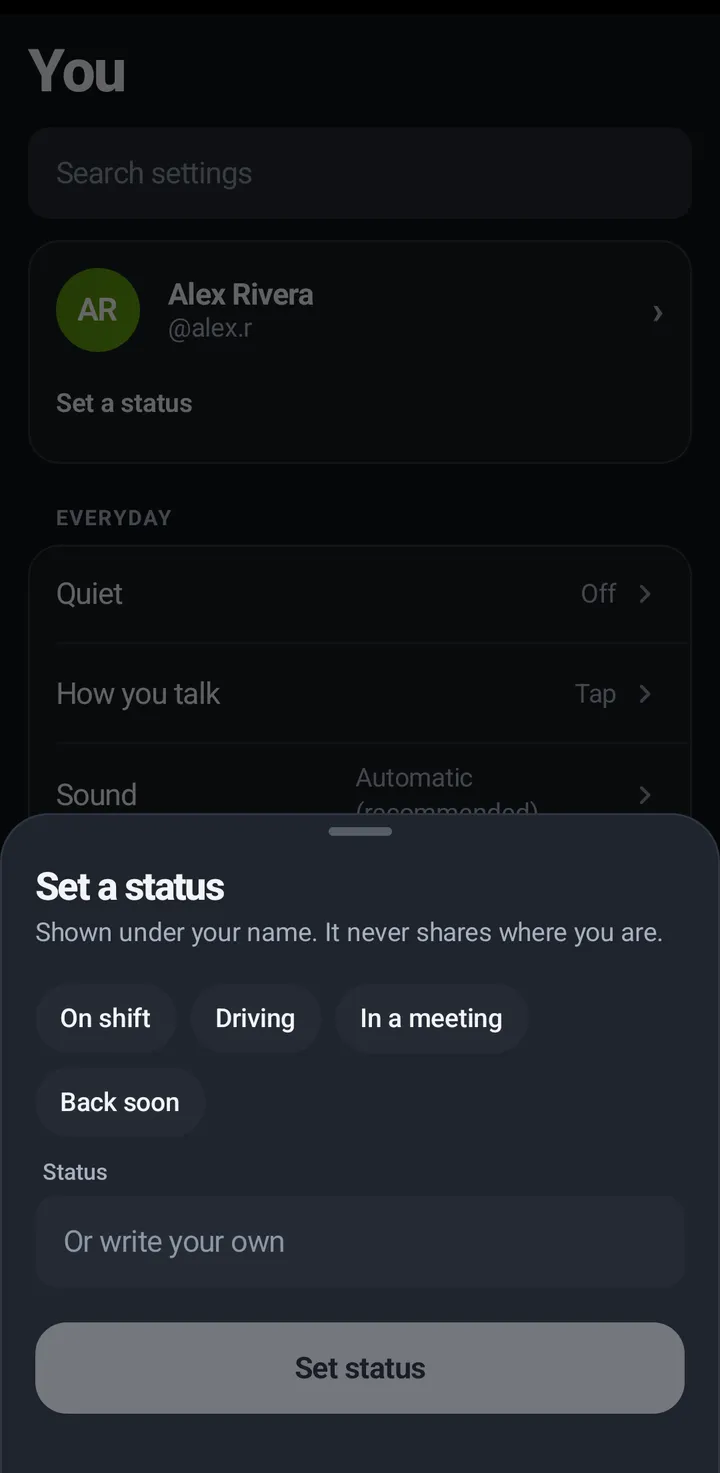
Set a status
Phone
- On the You tab, tap Set a status under your name.
- Tap On shift, Driving, In a meeting or Back soon, or type your own under Or write your own (up to 40 characters).
- Under How long, pick 1 hour, 4 hours, Today or Until I clear it.
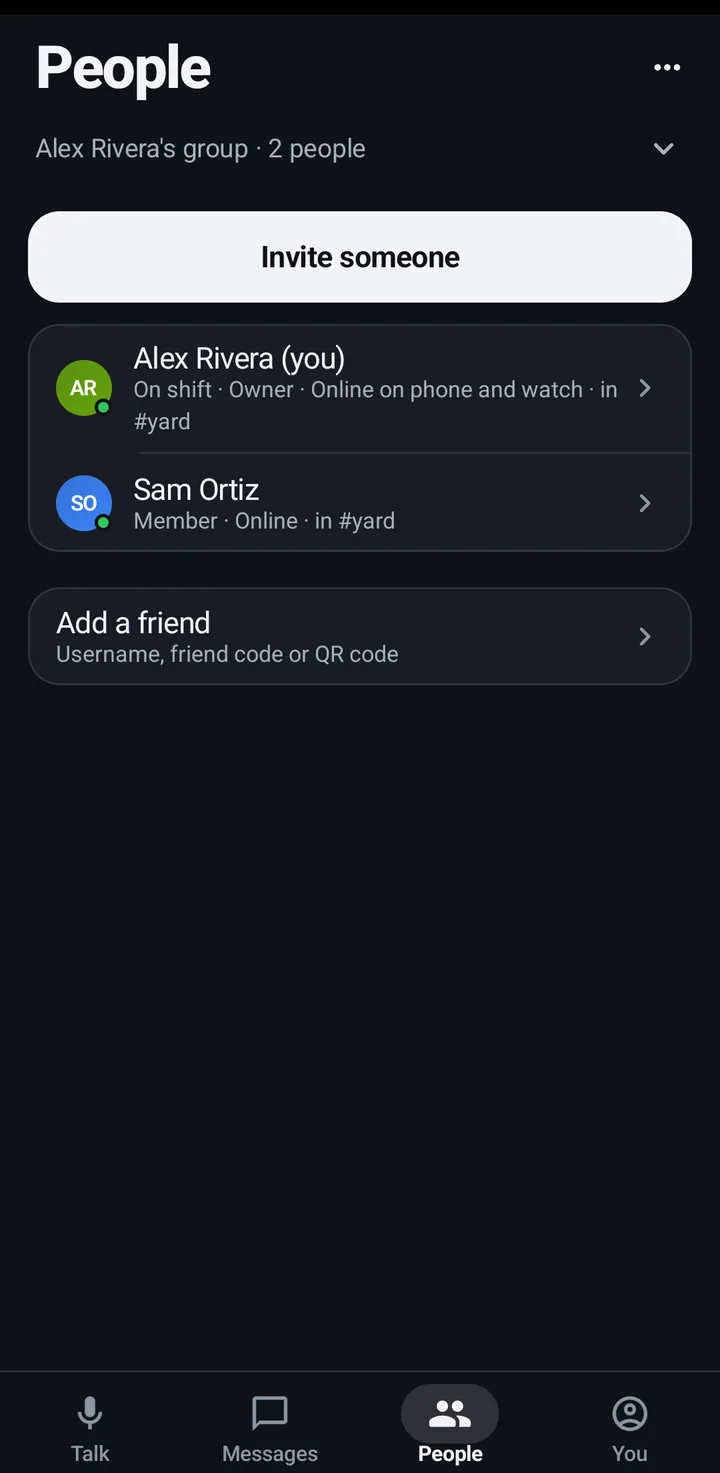
- Tap Set status. Your name line then reads like “On shift · until 4:30 PM”.
- To remove it, tap it again and tap Clear status.
Watch
- Swipe up, Settings › You › Set a status. Tap On shift, Driving, In a meeting or Back soon, or Say your own to say your own (up to 40 characters).
- Pick How long: 1 hour, 4 hours, Today or Until I clear it. The same words as the phone, and Clear status removes it.
- Statuses show under people’s names in In this room and Friends.
Web app and iPhone
You › Set a status: pick a suggestion or write your own (up to 40 characters), choose Clear it after (1 hour, 4 hours, Today or Until you clear it) and Save status. Clear status removes it.
Away and Quiet status
After 30 minutes without using KeyUp, friends and people in your Spaces see a yellow dot and Away. With Quiet on they see a moon. Your status follows your account on every device.
Phone
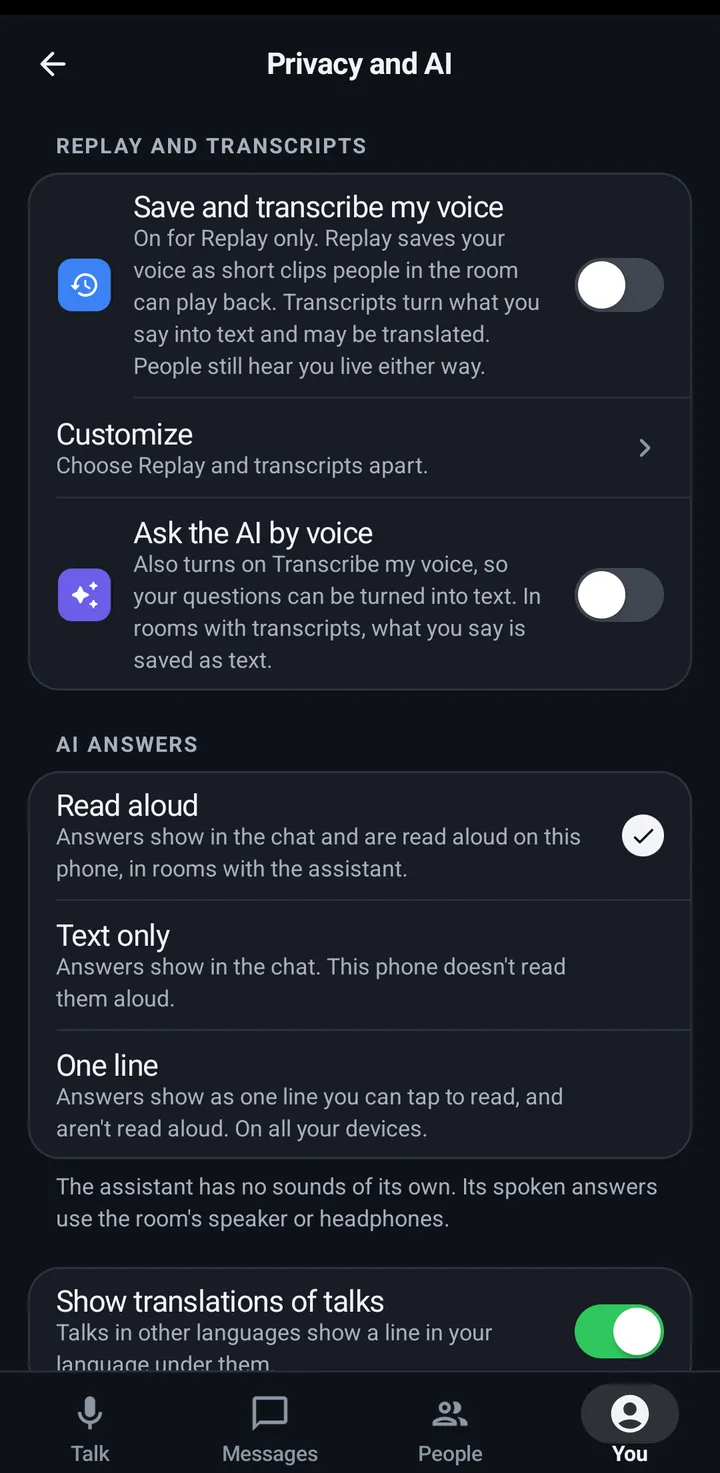
You › Privacy and AI › Advanced › Show when I’m away (on by default).
Watch
Settings › You › Privacy › Advanced › Show when I’m away.
Web app and iPhone
You › Privacy and AI › Advanced › Show when I’m away.
Still stuck? Email [email protected]. Tell us your phone and watch model and what you tried.