Friends: add, share your code, message and call
Add a friend by code, link or username, share your friend code, answer requests, and message or call your friends.
Friends can message and call each other even if they aren’t in the same Space.
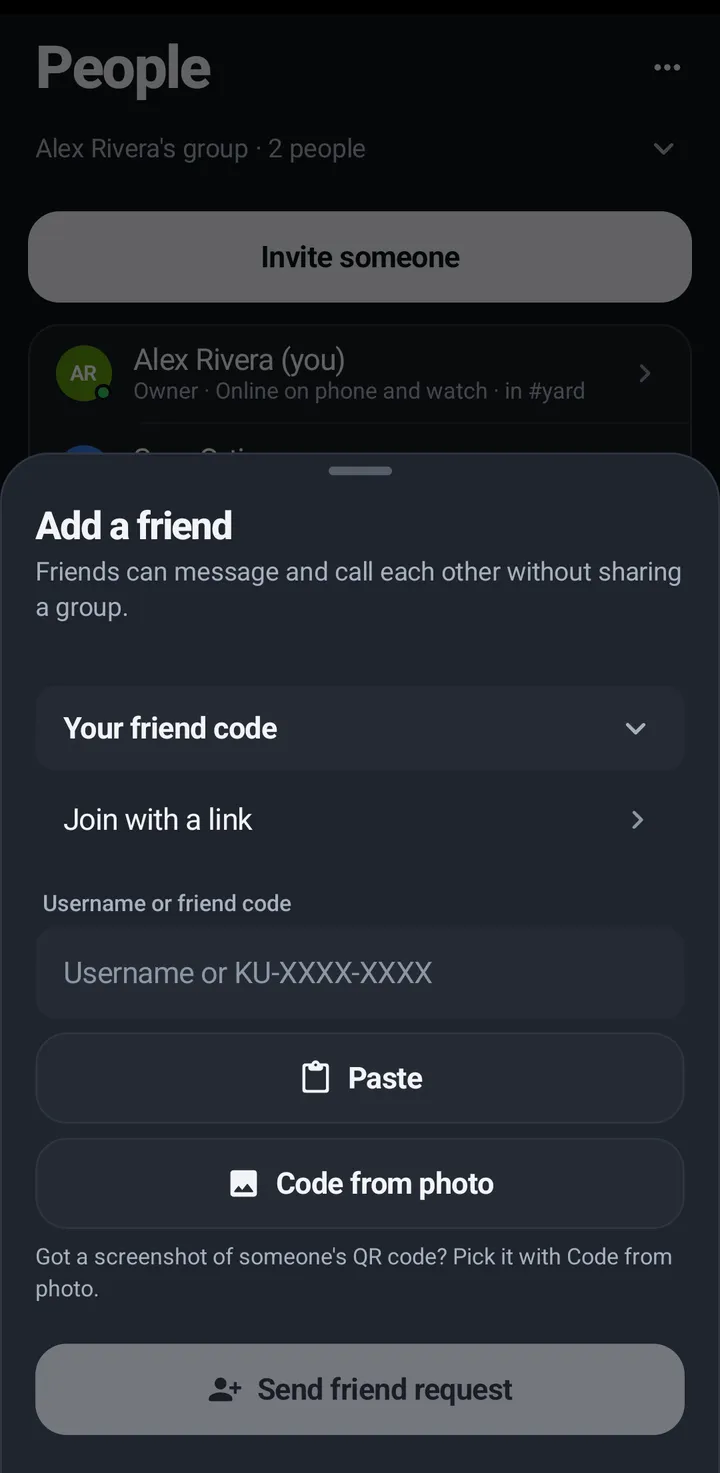
Add a friend
Phone
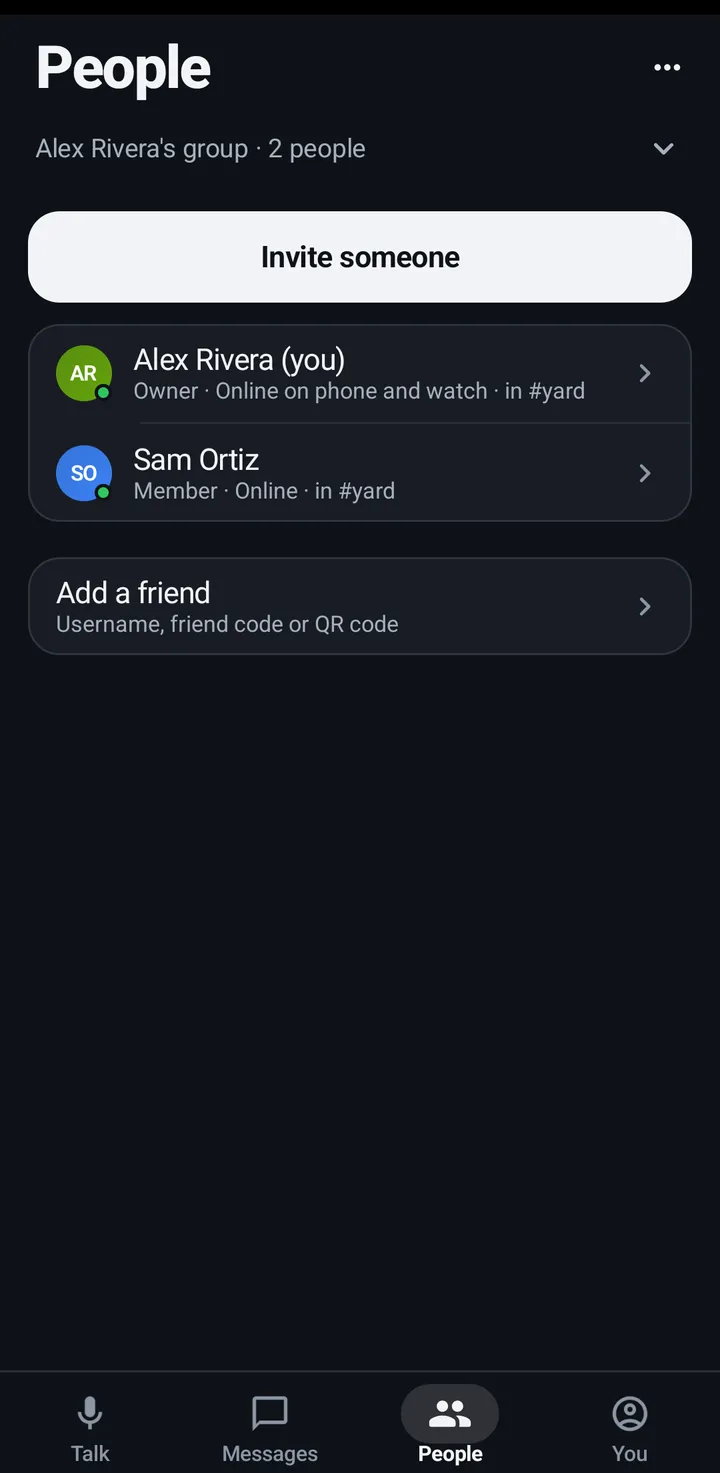
- People › Add a friend.
- Type a username or code, tap Paste, or use Code from photo for a screenshot of a QR code.
- Tap Send friend request.
Watch
Swipe up, Friends › Add a friend.
Web app and iPhone
On the People tab, type a username or friend code and tap Add.
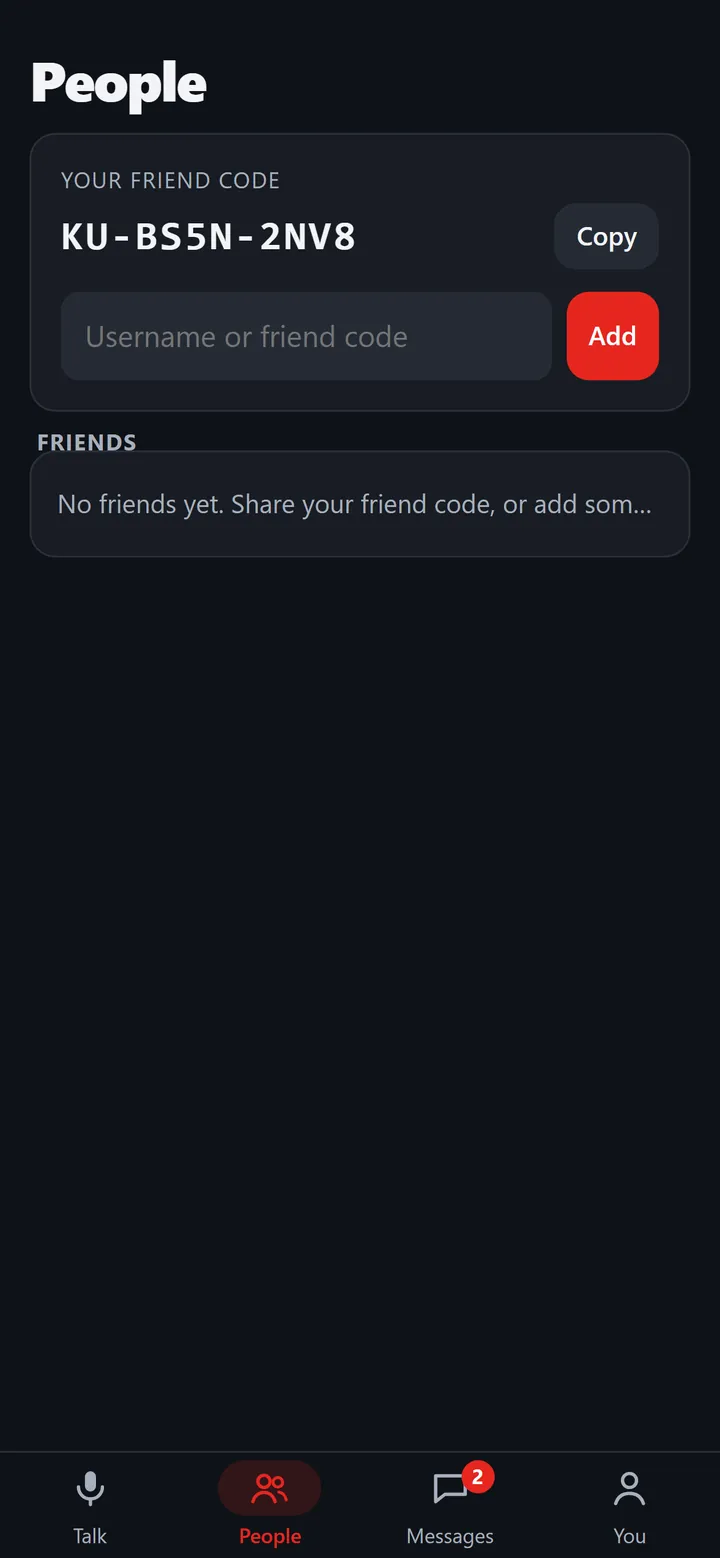
Share your friend code
Your friend code looks like KU-XXXX-XXXX and comes with a QR code. Making a new code stops the old one working.
Phone
People › Add a friend, then open Your friend code: Copy, Share and Make a new code. In Classic look it is at the top of the You tab.
Watch
Swipe up, Friends › My friend code: QR code, Copy, Share, Make a new code.
Web app and iPhone
People tab: Your friend code with Copy.
Friend requests and your friends
The People tab lists your friends, requests waiting for you, and requests you sent. Requests and invitations that came while KeyUp was closed show up as soon as you open it.
Phone
- When you open KeyUp, a new friend request or Space invitation shows a small card above the tabs, like Sam wants to be friends with Decline and Accept (an invitation has View). The People tab shows a number until you open it.
- People tab: Friends, Friend requests (Accept, Decline) and Waiting for a reply (Cancel).
- A friend’s More button has Message, Call, Remove friend and Block.
Watch
- Swipe up, Friends: My friends and requests waiting for you. A number on its icon shows new requests and invitations until you open it.
- A person’s screen has Add friend or Accept, and for a friend Remove friend and Block (two taps each).
Web app and iPhone
- People tab: Invitations, Requests and Friends, each with message, call and a More button.
- A friend’s More button has Remove friend (two taps) and Block.
Message and call friends
Friends can reach each other anywhere in KeyUp, with or without a shared Space.
Phone
People tab › a friend › Message or Call.
Watch
Swipe up, scroll to Actions, Call someone, or Messages › New message.
Web app and iPhone
People tab: the message and phone icons on a friend row.
Still stuck? Email [email protected]. Tell us your phone and watch model and what you tried.