Your devices: see, add and remove
Every phone, watch and browser signed in to your account. Add a phone with a code, choose which room each device opens, and remove a lost one.
The Devices list shows this device first, and the others with “Last active” times, so old duplicates are easy to spot. Devices signed out or idle for 30 days are hidden.
See and remove your devices
Phone
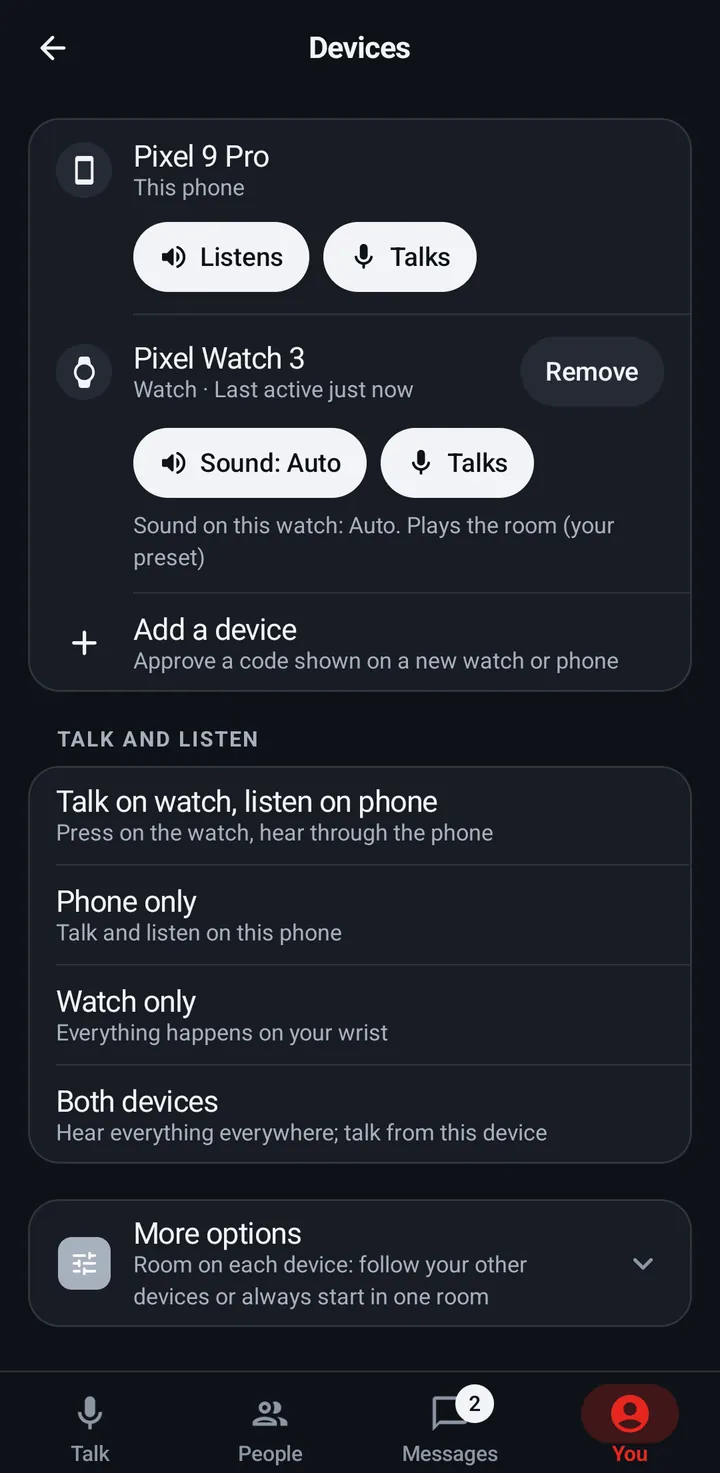
- You › Devices. Talk and listen sets them all with one preset. Tap a device to change whether it listens and talks (Listens, Talks; a watch has Sound: Auto, On or Off), or to Remove it (two taps).
- Add a device approves a code a new watch or phone shows.
Watch
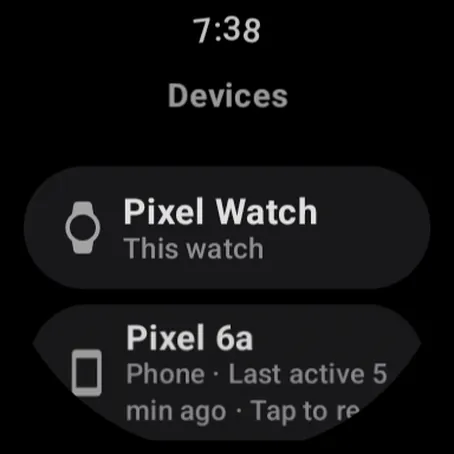
Settings › You › Account › Advanced › Devices. Tap another device to remove it (two taps). Add a device: type the code.
Web app and iPhone
You › Devices: every device with its Last active time and Remove. This browser is listed first.
Add a phone to your account
Instead of typing your password, a new phone can show a short code that you approve from a device you are already signed in on.
Phone
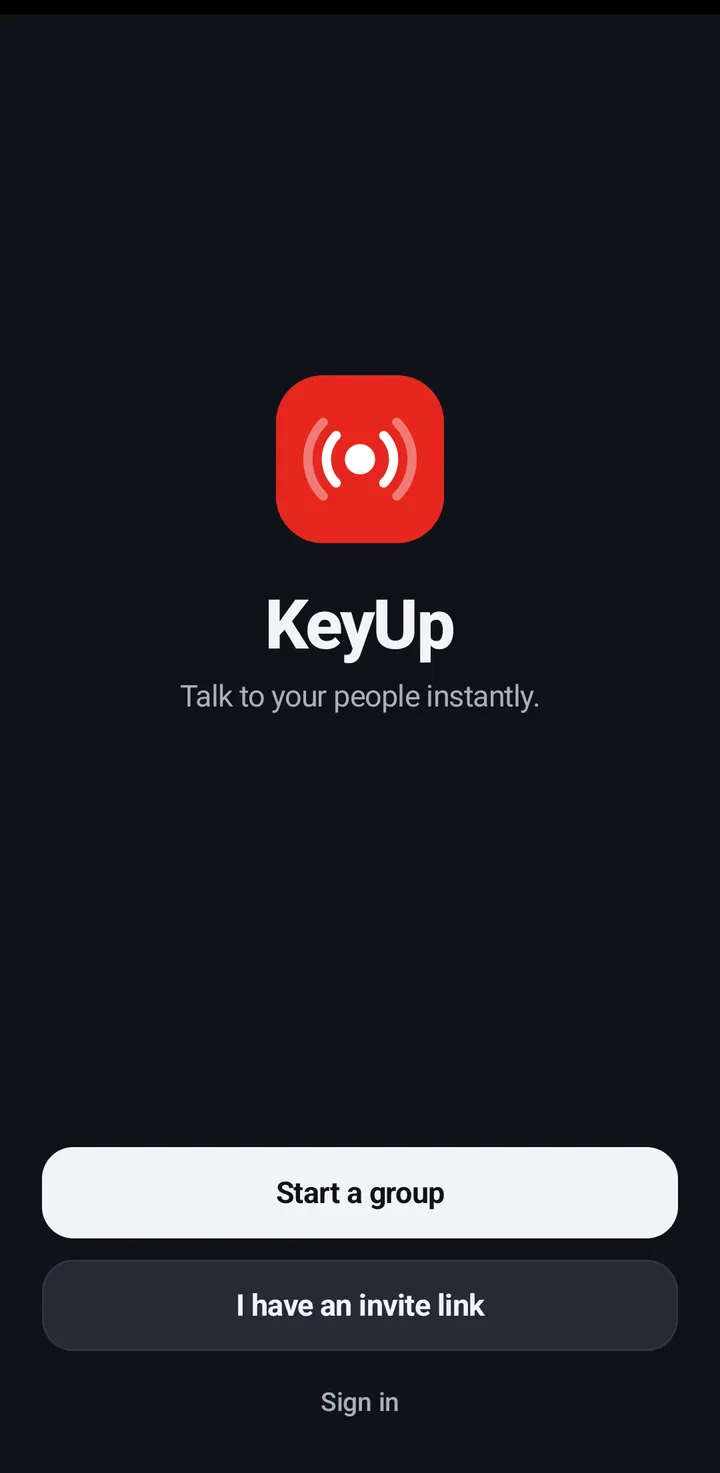
- On the new phone, tap Add this phone to my account on Welcome (or Use a code from another device on the sign-in screen).
- It shows a code that expires in a few minutes.
- On your other phone, go to You › Devices › Add a device, type the code and approve it. See Approve a new device below.
Watch
To approve from the watch instead: Settings › You › Account › Advanced › Devices › Add a device, then type the code.
Web app and iPhone
The web app signs in with your username or email and your password, or with Google.
Approve a new device (Add a device)
A new phone or watch shows a code. You approve it from a device that is already signed in. Before you approve, KeyUp shows which device is asking, so a code someone else sends you can’t sign their device in as you.
Phone
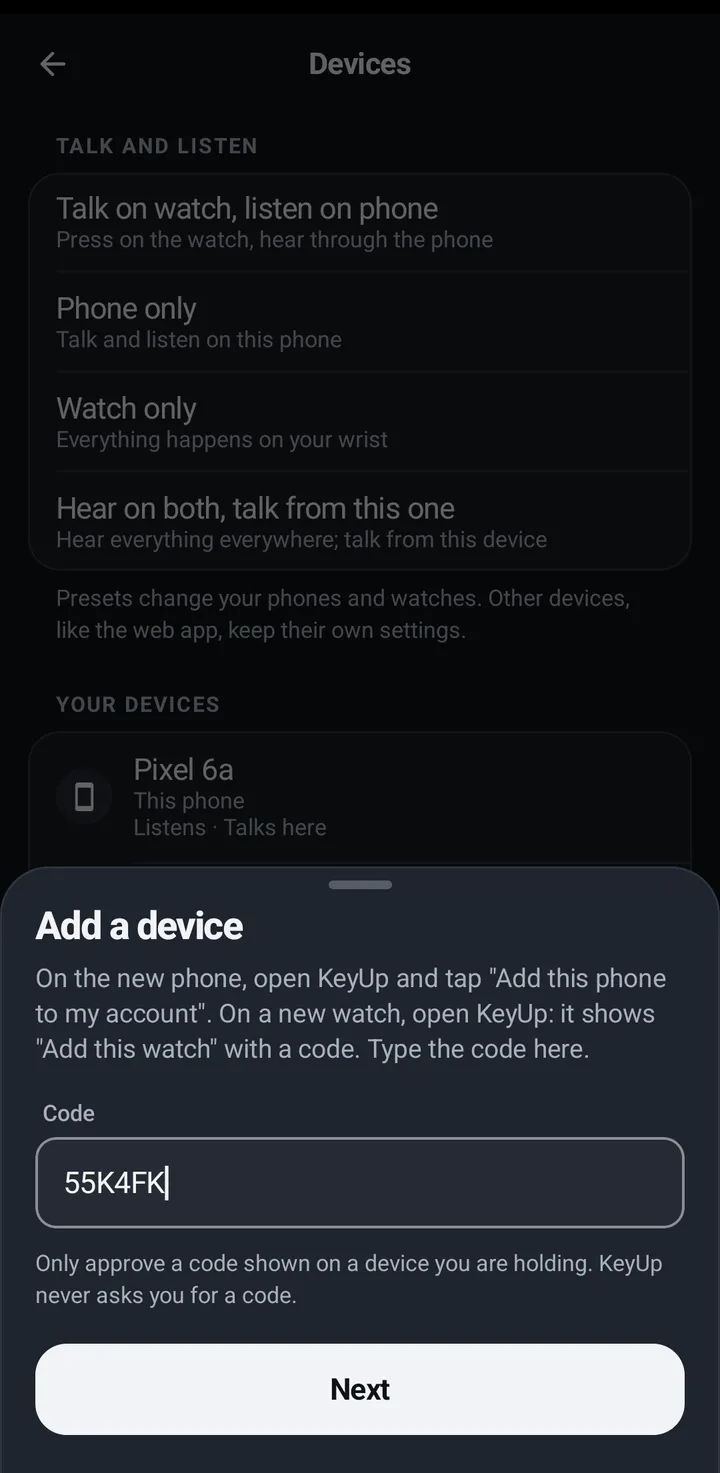
- Go to You › Devices › Add a device. The sheet says where the code is: on a new phone, open KeyUp and tap Add this phone to my account; a new watch shows Add this watch with a code.
- Type the code and tap Next. Under the box it says Only approve a code shown on a device you are holding. KeyUp never asks you for a code.
- KeyUp shows which device is asking, for example Sign in Pixel Watch as you? and Watch · asked 2 min ago, with the same warning. Check that it is the device in your hand, then tap Approve. Not yours? Tap Cancel.
- After you approve, it says Pixel Watch signed in as you and It will sign in by itself in a moment., with Not you? Tap Remove to sign it out. and a Remove button. Tap Done when it is yours.
Watch
Settings › You › Account › Advanced › Devices › Add a device: type the code, tap Next, check which device is asking (for example Sign in Pixel 8 as you?) and the warning, then Approve or Cancel. The same signed in as you notice and Remove follow.
Web app and iPhone
To approve a watch from a browser, use keyupradio.com/pair. See Add your watch.
Which room each device opens
By default every device follows the room you switch to on your others. You can pin a device to one room instead. A following device that was closed, asleep or reconnecting catches up to your newest room when it connects again, but not while you are talking or on a call, and never into a text-only room.
Phone
You › Devices › Advanced › Which room each device opens: Follow my other devices (every device is listed).
Watch
Settings › Notifications and rooms › Follow my other devices, with Always start here.
Web app and iPhone
You › Devices › Follow my other devices, with Always start in this room.
Still stuck? Email [email protected]. Tell us your phone and watch model and what you tried.