Crown talk with the screen off or dark
Talk with the crown while the watch screen is off, keep KeyUp showing on the dimmed watch so the crown always works, and keep the screen dark while you talk.
The crown can start a talk with the screen off (Wear OS 5 or newer, with an Accessibility setting), or with KeyUp kept on a dimmed screen. You can also keep the screen black while you talk and turn it off when the talk ends.
Screen-off crown talk
Normally the crown talks only while KeyUp is on screen. Screen-off crown talk uses a watch Accessibility service so the crown works with the screen off. Raise to talk uses the same service. KeyUp’s crown service reads crown and bezel turns to start and stop a talk, can keep the screen black and lock it after a dark-screen talk, and can open KeyUp to show who is talking or to start a talk you asked for with a double pinch. It also checks which app is on screen, so the crown still scrolls in other apps. It reads nothing else on your screen, what you type, or anything in other apps, and nothing from it is stored or sent. The watch explains this before anything turns on, and while the service is on Android lets KeyUp turn on the microphone for a talk you start with the screen off.
Watch
- The first time you open KeyUp on the watch, right after the microphone and notifications, it asks Talk with the screen off? with the full explanation. Tap Agree and open settings, turn on the KeyUp service in the watch’s Accessibility settings, then come back. Or tap Not now: nothing opens and nothing turns on.
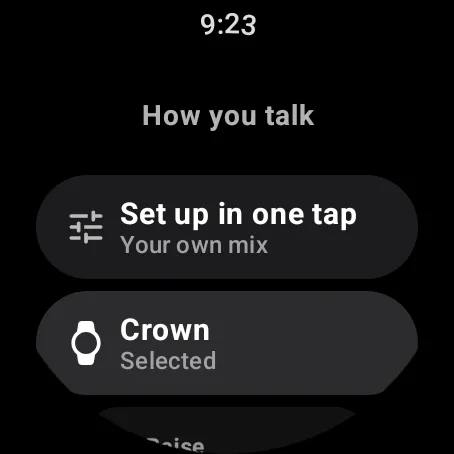
- To turn it on later: swipe up, tap Settings › How you talk and pick Crown.
- Tap Screen-off crown talk, right under the five choices, and read Talk with the screen off. Tap Agree and open settings, or Not now. This text, the name of the KeyUp service and the names of the KeyUp tile and shortcuts follow the language of the watch when it is Spanish, German, French, Portuguese or Italian.
- Turn on the KeyUp service in the watch’s Accessibility settings when asked.
- Turn the crown with the screen off to test it.
Phone
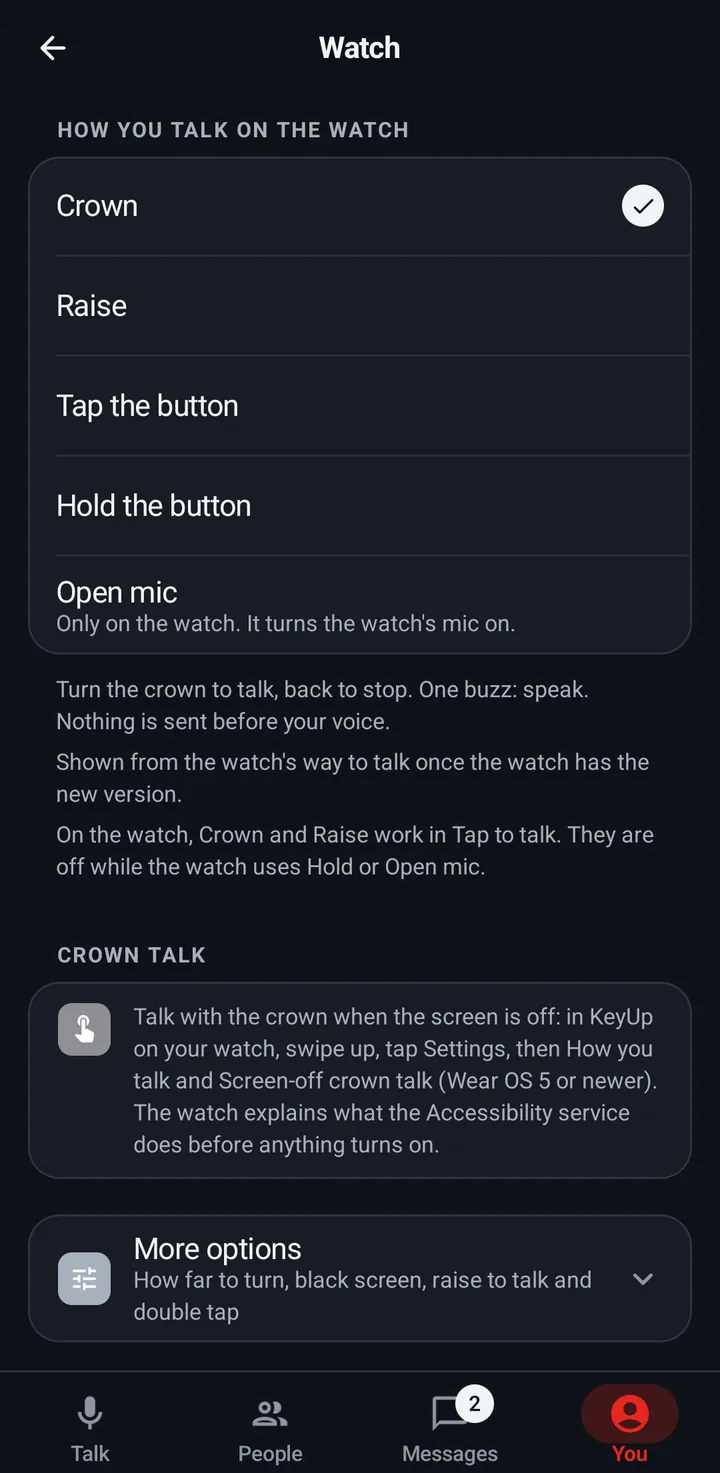
You › Talk › On my watch, with Crown picked, shows how to turn it on. The Accessibility step happens on the watch.
Keep KeyUp on screen and the black screen
Keep KeyUp on screen keeps KeyUp showing on the dimmed watch so the crown and double tap work without the Accessibility service. It is automatic. Black screen while crown talking turns the screen black during a crown talk, and Screen off when a crown talk ends turns the display off right after one.
Keep KeyUp on screen
Watch
- Nothing to do in most cases: it turns on by itself when the crown talks without the Accessibility service, or when Double tap the dimmed screen to talk is on. While Double pinch is your way to talk it stays on and says On while you talk with Double pinch.
- To choose yourself, swipe up, tap Settings › How you talk › Advanced › Keep KeyUp on screen. Each tap goes Automatic, On, Off. Off works at once: the next time the screen dims, the watch face comes back.
- Right under it, Dim screen picks what KeyUp shows while the watch is dimmed: Clock and room (the time, your room and a hint) or All black (nothing at all). See An all black dim screen.
- While Keep KeyUp on screen is on for Double tap the dimmed screen to talk or Double pinch, the small KeyUp mark shows on the watch face even if you turned off Show KeyUp on the watch face, because the watch keeps KeyUp on the dim screen only with it. Your own choice comes back when neither one uses the dim screen.
A dark screen for crown talks
Watch
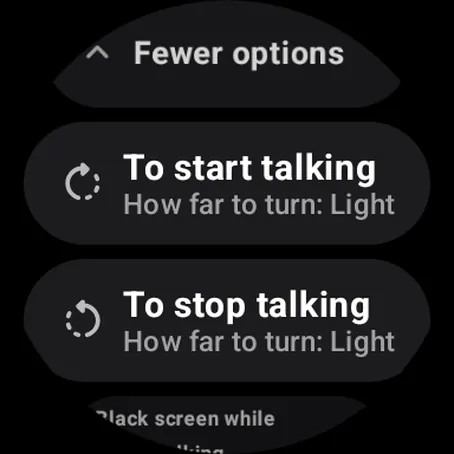
- Pick Crown in Settings › How you talk, then open Advanced.
- Turn on Black screen while crown talking (“Screen stays dark”).
- Turn on Screen off when a crown talk ends (“Display goes off at once”). It is off until you turn it on.
Phone
These switches are on the watch only. The phone’s You › Talk › On my watch has More on your watch.
Still stuck? Email [email protected]. Tell us your phone and watch model and what you tried.